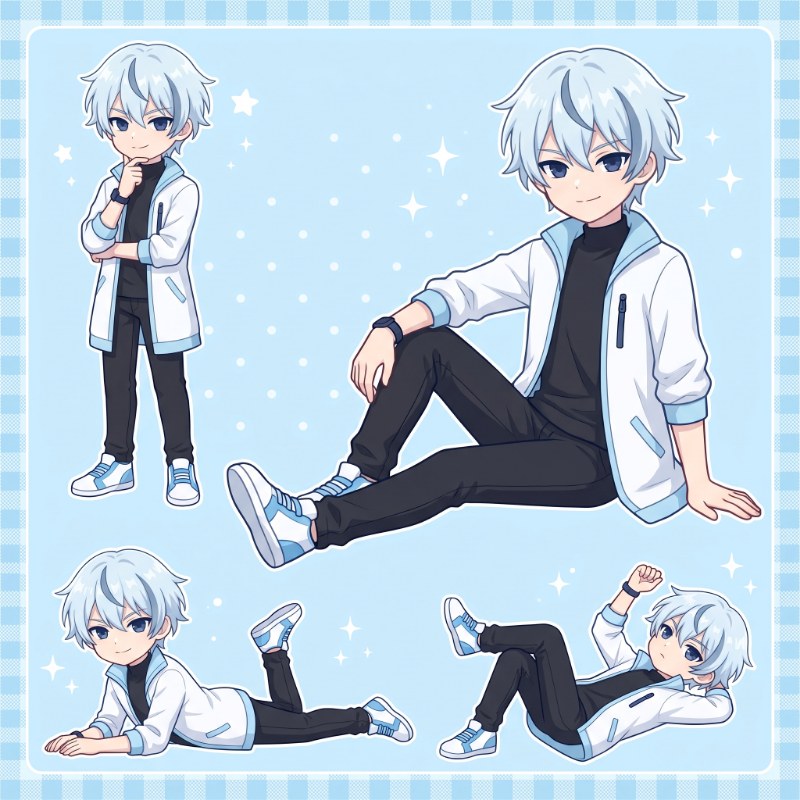
This manual is an AI translation of the Japanese original. If anything is unclear or the two differ, the Japanese version takes precedence. Screenshots show the Japanese interface.
About this tool
Want your male avatar to sit and lie down in cool poses even with 3-point tracking or in Desktop mode? Want to appear in photos in a well-defined pose? This easy pose-locking tool is for you. It includes 50 poses in total, from standing poses to sitting on chairs and the floor, prone and supine.
Cool Posing is a Unity tool for VRChat avatars developed and sold by Unisaki Studio (UniSakiStudio). It is built on the shared system “Unisaki Posing System”, so its basic operation is the same as that of the sister tools that use the same system.
Cool Posing is a paid tool sold on BOOTH and Gumroad. To use it, you need to purchase it on BOOTH or Gumroad and install the license provided with your purchase. It cannot be used for free, and no license is granted to anyone other than the purchaser.
The version shown on the BOOTH product page may be out of date. Because the VCC/ALCOM version does not require an updated zip, the version shown on BOOTH may not match the latest version. Check the official X account for the latest version.
What this tool can do
- When you sit on a chair or the floor in real life, your avatar sits in a cool pose that suits male avatars
- Standing and sitting poses can be locked, so you can appear in photos in a well-defined pose
- Lying poses for VR sleeping are included too
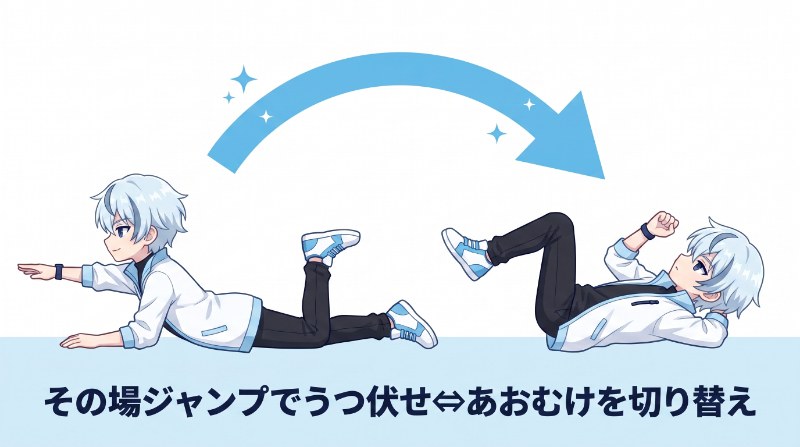
- You can quickly switch between prone and supine by jumping
- Poses switch automatically according to the height of your real head (headset). It also works in Desktop mode
- The menu images are generated automatically
- You can freely add any animations you like, such as those from other products
- If your avatar already has “Stand”, “Crouching” or “Prone” poses set up, they are imported automatically
- A feature that disables head tracking keeps animations from looking wrong because of where you face
- A feature that locks your feet to the floor lets you fine-tune your pose
- If you lock your head, feet and arms, you can view your own avatar from a third-person view with SpaceDrag or similar tools and enjoy taking photos
- Supports Quest (you can turn off “Generate pose icons” to keep the avatar size down)
- (Ver1.1.0+) Photo Mode: Move your avatar up to 3 m forward and turn it to place it where it is easy to photograph
- (Ver1.1.0+) Floor Height: Move your whole body, head included, up or down by up to 3 m (use it alongside “Foot Height”, which moves only the foot side)
- (Ver1.1.0+) Breathing / stopping sway: Add breathing motion to the chest and other parts, or stop VRChat's default idle sway
- (Ver1.1.0+) Automatic limb adjustment (IK): In 43 of the 50 poses, hand and foot positions are adjusted automatically to fit your avatar's body shape (the remaining 7 poses use the conventional per-pose adjustment)
- (Ver1.1.0+) Roll Over: Can be used in lying poses for which you set a sideways animation yourself (the included poses do not contain roll-over motions)
- (Ver1.1.0+) Feature selection: Add only the in-game menu items you need, and check parameter usage in the Inspector
- (Ver1.2.0+) Display language: Show the Inspector, setup guidance, standard pose names and in-game menu in 30 languages, including 日本語, English, 한국어, 简体中文 and 繁體中文 (→ Choosing the display language (Unisaki Posing System Ver3.2.0+))
Included poses
It includes 50 poses in total: 11 standing, 9 crouching, 14 sitting, 9 supine and 7 prone.
| Category | Number of poses |
|---|---|
| Standing | 11 |
| Crouching | 9 |
| Sitting | 14 |
| Supine | 9 |
| Prone | 7 |
| Pose group | Names of included poses |
|---|---|
| Standing | Still Waiting, Thinking, Shy, Elbow Strike, Model, All Clear, In a Pod, Demon Lord, Wall Lean, Stop, Ready to Fight |
| Crouching | The Thinker, Business Talk, Looking Down, On a Break, Room for Two, Sleepy, Reclining, Poised, Knight |
| Sitting | Tatami, Floor Cushion, Corner Store, Seaside, Paradise, Mattress, Carpet, Sandy Beach, Futon, Lawn, Bed, Sports Day, Japanese Room, Training Ground |
| Supine | Hug the Earth, Knocked Down, Flopped Asleep, Sunny Nap, Arm Pillow Nap, Tree Nap, Cat Nap, Sulking, Come Here |
| Prone | No Energy, Lazy Day, Feeling Down, Crawling, Getting Up, Defeated, Submission |
The categories correspond to the pose groups in the in-game Expressions Menu. Crouching is designed for about the head height when you sit on a chair in real life, Sitting for about the height when you sit on the floor, and Lying for when your head drops close to the floor. The pose you choose in each group is remembered per group, and the tool switches automatically to the selected pose according to your head height. You can freely rename the poses in the Inspector.
Requirements
| Item | Details |
|---|---|
| Unity | 2022.3 (the version officially recommended by VRChat; VCC/ALCOM set it up automatically) |
| VRChat SDK | VRChat SDK - Avatars (SDK3) 3.10.4 or later (Unisaki Posing System Ver3.1.0+) |
| Required tools | Modular Avatar 1.16.2 or later (1.x) / Non-Destructive Modular Framework (NDMF) 1.14.8 or later (1.x) (Unisaki Posing System Ver3.2.0+) |
| Avatar | Humanoid (a Humanoid Avatar must be set in the Animator) |
| Purchase | This is a paid tool. You need to purchase it on BOOTH or Gumroad and install the license |
| Package management | ALCOM or VCC (VRChat Creator Companion). ALCOM is recommended for stable operation |
| Shared system | Unisaki Posing System (jp.unisakistudio.posingsystem; installed automatically as a dependency). Cool Posing 1.2.0 requires Unisaki Posing System 3.2.0 or later (3.x) |
Modular Avatar and NDMF are required libraries distributed for free; you can add them to your project from ALCOM/VCC. This tool is a non-destructive tool built on NDMF, so it is integrated automatically when you upload your avatar and never directly rewrites your avatar's own data or FX layer. ALCOM is a community-made package manager compatible with VCC, and it avoids problems specific to VCC (such as versions that do not exist being displayed).
Notes
- The pose features cannot be used during full-body tracking (FBT) (this tool is for 3-point tracking and Desktop mode)
- ExpressionParameters usage depends on the items you choose in the “Features” tab of the Inspector (8 bits for pose selection alone; Foot Height and Floor Height use 8 bits each, syncing Photo Mode uses 16 bits, and so on. The total is shown in the Inspector). The distinction between the “standard 17-bit version / 8-bit version” of Ver3.0.x and earlier was replaced by feature selection in Unisaki Posing System Ver3.1.0
- For a more comfortable experience, we recommend using it together with a tool that has a SpaceDrag feature, such as OVR Advanced Settings
- It works with avatars that support the Humanoid rig. On avatars with an unusual body shape or bone structure, poses may be misaligned (you can fix this with the Animation Adjustment feature; → see Troubleshooting)
- It is a non-destructive tool based on NDMF. It is integrated automatically when you upload your avatar, and your avatar's own data is not changed
- On avatars that already use the Base layer of Playable Layers, the tool merges with it automatically, but this may not work well if special features are used
Installation
Installing for the first time
- After purchasing on BOOTH, download and unzip the product zip file
- Your browser (Chrome, etc.) may show “Suspicious download blocked”, but the zips you can download from BOOTH are safe, so go ahead and download them
- If you purchased on Gumroad, download and unzip CoolPosing.zip. The Gumroad edition has English file names, and the zip contains README.txt, CoolPosing_Installer.unitypackage and the Terms of Use. In the following steps, read “カッコいいポーズツール.unitypackage” as “CoolPosing_Installer.unitypackage”
- Double-click カッコいいポーズツール.unitypackage included in the zip (or import it into a Unity project)
- This installs the license on your PC and also registers the Unisaki Studio repository with VCC/ALCOM
- What is imported into the Assets folder are temporary files for installing the license, and they are deleted automatically afterwards. It is normal for the
Assets/UnisakiStudiofolder to be empty - In ALCOM (or VCC), add “Cool Posing” to your project
- If “Modular Avatar” is not installed yet, add it to the project as well
- Unisaki Posing System is added automatically as a dependency
- Open the project in Unity, right-click the avatar in the Hierarchy and choose “Unisaki Studio” → “Add Cool Posing” from the menu
- After adding it, choose the features to use (the items added to the in-game menu) in the “Features” tab of the Inspector. The menu item for adding the old “8-bit, no Foot Height” (8bit・足の高さなし) version was removed in Ver1.1.0
- A “Cool Posing” object is added directly under the avatar
- If an adjustment preset for your avatar is found, a dialog asking “Apply the preset?” appears. Press “Apply” to set adjustment data that fits your avatar's body shape automatically
- Next, a dialog asking “Prebuild now?” appears. Press “Yes” to make building and uploading the avatar faster (recommended)
- Then upload your avatar as usual
If “Unisaki Studio” appears in the right-click menu, the tool was imported successfully. If the items do not appear or are grayed out, the license has not been installed or another error has occurred in Unity (→ see Troubleshooting).
A second project or later installations
On a PC where you have installed the license once, from then on you only need to add the tool to your project from ALCOM (or VCC). You do not need to download the zip or import the unitypackage again.
If registering with VCC/ALCOM fails
If the “Add to VCC” shortcut gives errors such as “No program is registered for the vcc protocol” or “Application not found”, try the following in order.
- Install ALCOM, then import カッコいいポーズツール.unitypackage again (the repository is registered automatically during the import)
- If it is still not registered, check whether errors appear in Unity's Console (errors from other tools can interrupt the automatic registration)
- If that does not solve it, please contact support
How to update
- Update to the latest version from the project screen of ALCOM (or VCC). Update Cool Posing and “Unisaki Posing System” together. The settings of tools already placed are carried over
- After updating, check the features in use and the ExpressionParameters usage in the Inspector. If you were using a prebuild, press “Update prebuild” before uploading again (in Ver3.1.0+, prebuilds made with older versions are detected as needing an update)
- (Updating to Ver1.2.0) In ALCOM / VCC, update Cool Posing to 1.2.0 together with “Unisaki Posing System” to 3.2.0 (Cool Posing 1.2.0 requires Unisaki Posing System 3.2.0 or later within 3.x). If Modular Avatar is older than 1.16.2 or NDMF is older than 1.14.8, update them too. If you use a prebuild, press “Update prebuild” once before uploading again. The settings of tools already placed are carried over as they are
- VCC has a known problem in which versions that do not exist are displayed and updating fails. Unisaki Studio does not recommend using VCC and recommends ALCOM instead (from the official FAQ)
- If poses look wrong after updating, deleting the “Cool Posing” object and adding it again from the right-click menu may help
Using it in-game
Menu layout (common)
When you open the Expressions Menu in VRChat (hold the menu button), you will find the “Cool Posing” menu. It contains the following.
- Select Pose — the pose menus (a submenu for each pose group) and “Ignore Head Height”
- Settings — “Mirror”, “Foot Height”, “Floor Height”, “Auto-Lock Head When Supine” and “Height Thresholds” (Crouching, Sitting and Lying Height Thresholds)
- Lock Feet — locks your feet to the floor
- Lock Head — disables head tracking
- Lock Arms — disables arm tracking
- Disable Gestures — uses hand shapes that match the pose instead of the hand shapes from your controllers
- Photo Mode / Breathing / Roll Over — menus added in Unisaki Posing System Ver3.1.0+ (see below)
In Ver3.1.0+, you choose which items appear in the in-game menu under “Menu features” in the “Features” tab of the Unity Inspector. Unchecked items (Mirror, Foot Height, Floor Height, Disable Gestures, Photo Mode, Breathing, Roll Over, etc.) do not appear in the menu and do not use their parameters.
In Unisaki Posing System Ver3.2.0+, the in-game menu item names and the standard pose names are created in the display language chosen in Unity (→ Choosing the display language (Unisaki Posing System Ver3.2.0+)). This manual describes the items by their English names.
Basic operation
- In “Select Pose”, choose one pose each for crouching, sitting, prone and supine
- Depending on the height of your real head (headset), the pose switches automatically from standing → crouching → sitting → lying
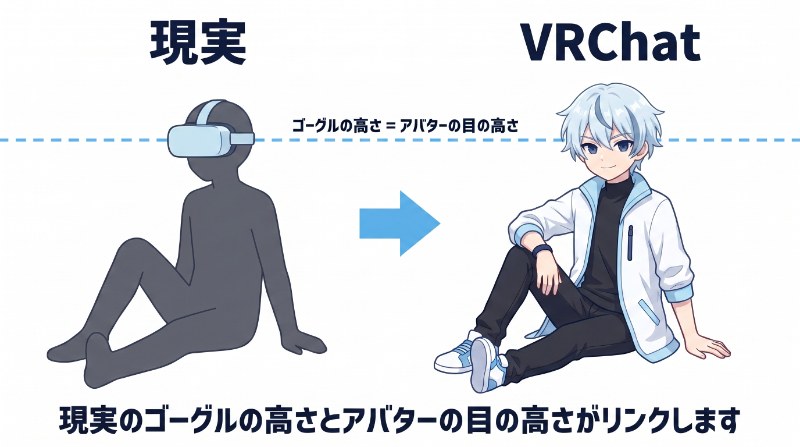
How to switch poses
| Mode | Action |
|---|---|
| VR mode | Lower your head in real life (crouch, sit or lie down). Or lower your head height with the Space Drag of OVR Advanced Settings or with PlayspaceMover |
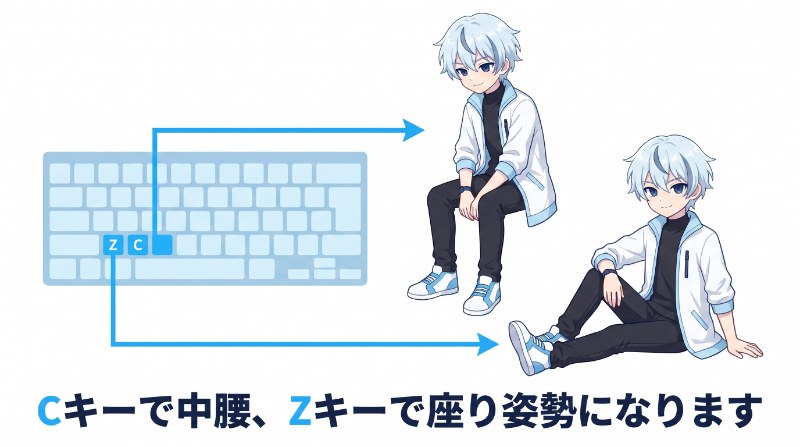
| Desktop mode | C key for crouching, Z key for sitting. To use lying poses, press Z and then change “Lying Height Threshold” in Settings to 35% or higher |
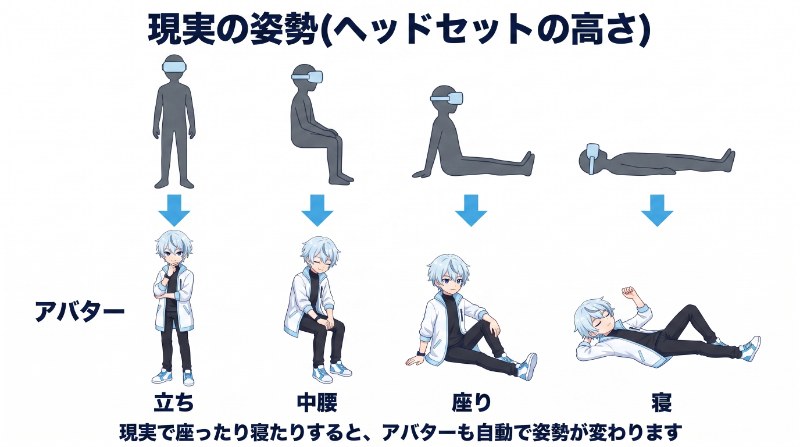
How it works: the tool uses the “head height” calculated by VRChat (a ratio where standing is 100%). Pressing C or Z also makes VRChat lower this value, so poses switch by the same mechanism in both VR and Desktop mode. In Desktop mode, the Z key normally lowers the head to about 34%, so with the default setting (Lying threshold 34%) it falls just short of the lying poses. That is why you raise the threshold to 35% or higher to use lying poses. Space Drag lowers only your avatar's head height without crouching in real life, which is handy for VR sleeping.
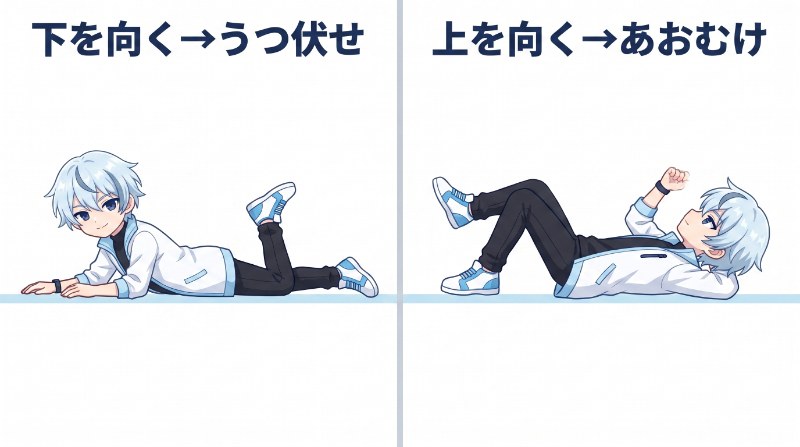
- Lower your head while looking down to lie prone, or while looking up to lie supine (this is detected automatically from the direction you face)
- While lying, jump in place (straight up without moving) to switch between prone and supine. For this switch, a pose must be selected for both prone and supine. If you do not want jumping to switch them, turn off “Features” → “Convenience” → “Switch lying poses by jumping” in the Unity Inspector (Unisaki Posing System Ver3.1.1+. On by default; uses 0 additional bits of parameters. On an avatar with several pose tools, turning it off in any one of them applies to the whole avatar)
Thresholds (head heights at which poses switch)
In “Settings” → “Height Thresholds”, you can change the head height at which each pose is used (as a ratio of your head height when standing).
| Threshold | Default | Meaning |
|---|---|---|
| Crouching Height Threshold | 80% | Crouching pose when your head is lower than this |
| Sitting Height Threshold | 59% | Sitting pose when your head is lower than this |
| Lying Height Threshold | 34% | Lying pose when your head is lower than this |
You set each threshold from 0 to 100% with a radial slider (radial menu). The % is the ratio of your current head height to your head height when standing. The values are saved, so once you have set them to your liking, they stay that way next time. For example, lower the Crouching threshold if you want sitting on a real chair to count as standing, or lower the Lying threshold if you want to stay in a sitting pose even when you sit on the floor.
- If you switch to a lying pose too soon when sitting on the floor, lower the “Lying Height Threshold”
- To use lying poses in Desktop mode, raise the “Lying Height Threshold” to 35% or higher
“Ignore Head Height”
When you turn on “Ignore Head Height” in “Select Pose”, automatic switching by head height stops and the pose is locked to the pose of the pose group you opened last (for example, if you open the sitting menu and then turn it on, you stay in the sitting pose even while standing).
When to use the lock features
- Lock Feet: Prevents movement and locks your feet to the floor. While Lock Feet is on, automatic pose switching also stops, which is handy when you want to fine-tune your position while keeping the pose
- Lock Head: Disables head tracking so that the animation does not break depending on where you face. Also recommended for VR sleeping
- Auto-Lock Head When Supine: Found in “Settings”; Lock Head is applied automatically while you are in a supine pose (in Desktop mode it is turned on automatically the first time you start)
- Lock Arms: Disables arm tracking and locks your arms in the shape of the pose
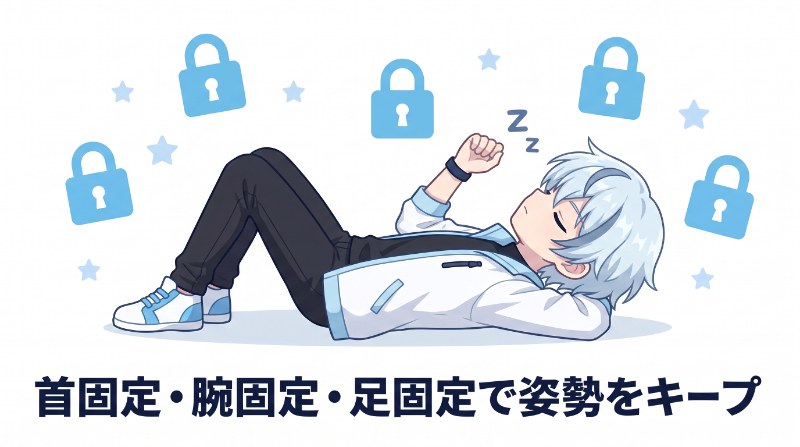
- If you lock your head, feet and arms, you can view your own avatar from a third-person view with SpaceDrag or similar tools and enjoy taking photos
Foot Height feature
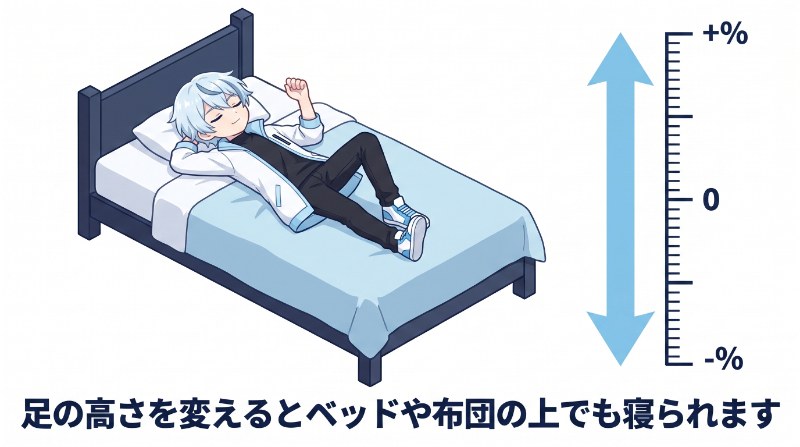
So that you can lie on beds and furniture without colliders, you can adjust your avatar's height with the “Foot Height” parameter (the default is 50%; 50% is the original height, and you can adjust it up or down). If your lower body sinks into the ground when prone or supine, check that this value is not 0.
Detailed reference of in-game features
Detailed behavior of every feature in the menu. “Added in” shows the version in which the feature was implemented (if you are using an older version, please update).
Mirror
Mirrors all poses. This is handy in situations like these:
- When you want to change which way your body faces to suit a photo's composition
- When you want to use a pose that has no left/right versions, unlike Arm Pillow L / Arm Pillow R, the other way around
The setting is saved. Note: With the old 8-bit Prefab (added in Ver3.0.x or earlier), Mirror works locally only, and other players see you unmirrored (the standard version is synced to others too).
Foot Height
Adjusts the height of your whole avatar from 0 to 100% (50% is the original height; you can adjust both down and up).
- When you want to lie on a bed, futon or furniture without colliders
- Fine-tuning when a pose floats above or sinks into the floor
The setting is saved. With the old 8-bit Prefab (added in Ver3.0.x or earlier), it works locally only (the height change is not synced to other players). To move your whole body including your head, use “Floor Height”, described next.
Floor Height (added in Ver3.1.0)
Moves your whole body, head included, up or down. 50% is the original height, 0% is 3 m down and 100% is 3 m up. In the in-game “Settings” it comes right after “Foot Height”. Moving it away from the center moves you up or down, and returning it to around 50% brings you back to the original height and ends the correction (there is no separate on/off switch for floating). Use “Foot Height” to match your feet to the floor or a bed, and “Floor Height” to float or sink your whole body. It uses 8 bits. It appears in the menu only if you enable it in “Features” → “Menu features” in the Inspector.
Photo Mode (added in Ver3.1.0)
Move your avatar up to 3 m forward and turn it to place it where it is easy to photograph.
- In the Unity Inspector, turn on “Features” → “Menu features” → “Photo Mode” and upload
- In VRChat, open “Photo Mode” and choose a pose in “Select Pose”
- Move forward with “Distance” (above 0, the avatar turns to face you) and rotate with “Direction”
- Turn on “Lock Feet” if needed (Lock Feet is not forced on at the start, so you can adjust the position before locking). If you added “Disable Gestures” to the menu, you can switch hand shapes on the same screen
- “Exit Photo Mode” resets the distance and direction and releases Lock Feet
If you use it only on your own screen, it uses 0 bits. To let others see the position and direction too, turn on “Convenience” → “Sync Photo Mode” (16 bits for distance and direction). If the head of your own avatar nearby disappears, turn on “Convenience” → “Keep your head visible in Photo Mode” (applies only to your own screen while in Photo Mode).
Breathing (added in Ver3.1.0)
With “Features” → “Convenience” → “Animate breathing”, the chest and other parts move with your breathing. From “Open settings”, you can choose “None”, “Weak”, “Medium”, “Strong”, “Fast” or “Custom” for each pose category (“Fast” is quick breathing, “Custom” is your own breathing animation). The breathing motion alone uses 0 bits. If you want to stop and resume breathing in-game, also turn on “Menu features” → “Breathing” (1 bit to sync on/off). The strength is set in Unity; in-game you only switch it on or off.
“Convenience” → “Disable VRChat idle sway” suppresses the idle body sway that VRChat adds by default (off by default, 0 bits). If you use several pose tools together, turning it on in any one of them applies to the whole avatar. It does not stop sway caused by anything other than the default idle motion.
Roll Over (added in Ver3.1.0)
In supported lying poses, tilting your head left or right makes your body roll over smoothly. Not every lying pose is supported automatically. The poses included with Cool Posing do not contain roll-over motions, so you set a sideways animation yourself for the lying pose you want to use.
- Turn on “Features” → “Menu features” → “Roll Over”
- To add support yourself, open “Details” of the lying pose you want in “Poses”, turn on “Enable roll over” and set a sideways animation in “Sideways roll-over pose” (adjust “Ground correction strength” if needed)
- After uploading, choose a supported pose in VRChat and turn on “Roll Over”. Use it with Lock Head turned off
A VRChat setting is required. The head tilt is detected by sensing your own head with VRChat's Contact (avatar interaction) feature, so Roll Over does not work unless interaction with your own avatar (Self) is turned on in VRChat's settings. If your body does not move even after you turn on “Roll Over” in the menu, check in VRChat under Settings → Avatars → Avatar Interactions that Self is turned on. This detection runs only on your own screen and does not react to other players' Contacts.
In poses that use Roll Over, the head tilt decides the playback position, so the usual motionTime setting cannot be used. Roll Over uses 10 bits (1 of which is shared with “Reduce pose distortion from head rotation”).
Ver3.2.0 fixed a problem where, when the head position could not be measured in a pose that uses Roll Over, “Could not measure RootT displacement for roll-over head centering.” appeared and the prebuild or avatar build stopped. Poses that cannot be measured now continue without head position correction, and a warning is shown in the Console.
Reduce pose distortion from head rotation (added in Ver3.1.0)
Use this when the pose breaks after you turn off Lock Head because your head faces a different way than in the original pose. It is in “Features” → “Convenience” and adds no dedicated in-game menu (1 bit, shared with Roll Over). While Lock Head is on, the head direction of the original pose is used. Supine poses are not corrected.
Ver3.1.2 fixed a problem where, with this setting on, your face kept looking up even after standing up from lying face down. If you have this symptom, update “Unisaki Posing System” to 3.1.2 or later, and if you use a prebuild, press “Update prebuild” before uploading again.
Ignore Head Height (added in VCC version Ver2.1.0)
Stops automatic switching by head height and locks you to the pose group you opened last. Use it when you want to take a sitting pose while standing, or when you want to keep a pose without holding a key (Desktop mode). The setting is saved.
Lock Feet
Prevents movement and locks your feet to the floor. While Lock Feet is on, automatic switching between pose groups also stops, so moving your head no longer changes the pose.
- Turning it on or off takes up to 1 second to apply (because the state is checked at 1-second intervals)
- Right after the avatar loads, it applies after waiting about 1 second
- Lock Feet is the only setting that is not saved (it turns off again when you change worlds or avatars)
Lock Head / Lock Arms
Disables tracking of the head and both arms and locks them to the movement of the pose animation.
- Lock Head: Keeps the pose from breaking depending on where you face. Also recommended for VR sleeping
- Lock Arms: Lets you put down your controllers and free your real hands (handy for VR sleeping and chatting)
- When you return from AFK or from another tool's lock gimmick, a mechanism applies the locks again automatically (Ver2.1.0)
- Both settings are saved
Disable Gestures (added in VCC version Ver2.2.0)
Uses hand shapes made to match the pose instead of the hand shapes from your controller gestures. Hand shape data is included for every pose.
- Recommended for VR sleeping together with Lock Arms, or when hand shapes look unnatural in Desktop mode
- The setting is saved separately for VR mode and Desktop mode and restored according to the mode when you start
- It is synced to other players too
Auto-Lock Head When Supine (added in VCC version Ver2.1.0)
Lock Head is applied automatically when you are in a supine pose. In Desktop mode it is turned on automatically the first time you start (to keep your view from pointing straight up when supine). The setting is saved.
In Unisaki Posing System Ver3.1.2+, “Settings” → “Auto-Lock Head When Supine” is shown even if you have not added “Foot Height” to the menu. On avatars where this item disappeared in Ver3.1.0 or 3.1.1, it comes back when you update to the latest version and build again.
Height Thresholds
You can change in-game the head height (% of your standing height) at which the pose switches to crouching, sitting or lying. Defaults: Crouching 80% / Sitting 59% / Lying 34%. The settings are saved.
How poses switch (detailed behavior)
- Pose transitions take 0.5 seconds in VR mode and are smooth, while in Desktop mode they switch instantly
- In Desktop mode, a mechanism keeps your body from sinking into the ground during poses (Ver2.1.0)
- Jumping and falling motions are applied only in standing poses. Jumping while in a pose does not break the pose (jumping in place in a lying pose is treated as switching between prone and supine)
- (Ver3.2.0+) Fixed a problem where, if you stood up right after jumping in a lying pose to roll over, before landing, you stayed in the lying pose even though you were standing (in earlier versions it did not recover until you took a lying pose again). If you use a prebuild, press “Update prebuild” before uploading again
- The pose selected in the pose menus is saved per group, so the same pose is ready to use from next time on
About saved settings
Foot Height, Mirror, Lock Head, Lock Arms, each height threshold, Ignore Head Height, Auto-Lock Head When Supine, the pose chosen in each group and Disable Gestures (separately for VR and Desktop) are saved even when you change avatars. Lock Feet is not saved (it turns off again each time the avatar loads).
When the lock features do not work (by design)
While you are sitting on a chair (using a Station), while AFK and while a VRCEmote (emote) is playing, the lock features (tracking control) do not work, to avoid conflicts with other gimmicks. This is intentional, so that chairs and lying-down gimmicks do not fight with the lock features.
Ver3.2.0 fixed a problem where, if you sat on a chair in a world or similar for only a few seconds and stood up, your feet did not take the shape of the pose and did not recover until you switched poses. A problem where, in Desktop mode, your viewpoint position no longer matched the pose after standing up from a chair was also fixed. If you have these symptoms, update “Unisaki Posing System” to 3.2.0 or later and upload again.
Settings in Unity (Inspector)
Select the “Cool Posing” object added directly under the avatar to configure various settings in the Inspector. Warnings and errors appear at the top when there are problems with the settings, so resolve them first (→ see the list at the end of this chapter).
Screen layout (Unisaki Posing System Ver3.1.0+: three tabs)
In Ver3.1.0, the Inspector was organized into three tabs: “Features”, “Poses” and “Avatar Setup”. For items with detailed settings, press “Open settings” to open the settings fields below them. From “Help / Changelog” at the top, you can open the usage guide, contact information and changelog (switchable between the product and Unisaki Posing System).
| Tab | What you set |
|---|---|
| Features | Items added to the in-game menu (Menu features), Convenience, Breathing settings, Icon image, and checking ExpressionParameters usage |
| Poses | Choosing, adding and reordering the poses to use, search, batch adding, previewing in the Scene, per-pose details, Animation Adjustment |
| Avatar Setup | Avatar-specific correction, knee correction, importing original poses and your own motions, integrating tracking locks with other tools, presets |
Mapping from the screens of Ver3.0.x and earlier: the items of “Settings” (設定) → the “Features” tab (icon-related items are “Generate pose icons” and “Reduce icon size”, tracking integration is “Avatar Setup” → “Integrate tracking locks with other tools”, and automatic import is “Avatar Setup” → “Use original standing, crouching and prone poses”). “Motion replacement” (モーション置き換え機能) → “Avatar Setup” → “Use your own motions”. “Pose animation settings” (姿勢アニメーション設定) → the “Poses” tab. “Select preset” (プリセット選択) → the bottom of the “Avatar Setup” tab. The images in this chapter show the screens as of Ver3.0.x.
Choosing the display language (Unisaki Posing System Ver3.2.0+)
From Cool Posing 1.2.0 (Unisaki Posing System 3.2.0), the Inspector, editing windows, setup and license dialogs, standard pose names and the generated in-game menu (Expressions Menu) can be shown in 30 languages.
- Choose the display language with “Language / 言語” at the very top of the Inspector. The one choice is used for both the Inspector and the in-game menu
- The in-game menu is created in the language selected when the avatar is built. To change what is shown in VRChat, change the language and then upload your avatar again
- If you have not chosen a language, your PC's language is used. If that language is not supported, English is shown
- The chosen language is saved per OS user of that PC and is shared by all pose tools, avatars and projects. There is no per-avatar language setting, and it is not synced to other PCs
- The language selection button appears only during the first installation confirmation, while no language has been chosen yet. To change it later, use the Inspector
- Pose names, avatar names and other names you changed yourself are not translated and are shown as they are
- The README, changelog and usage guide that you open from “Help / Changelog” at the top of the Inspector are also shown in the chosen language. The package includes them in all 30 languages, and you can also choose from the included list of languages
The 30 supported languages: 日本語 (Japanese), English, 한국어 (Korean), 简体中文 (Simplified Chinese), 繁體中文 (Traditional Chinese), Arabic, Bengali, Czech, Danish, German, Spanish, Finnish, French, Hebrew, Hindi, Indonesian, Italian, Norwegian, Dutch, Polish, Portuguese, Brazilian Portuguese, Russian, Swedish, Tamil, Telugu, Thai, Turkish, Ukrainian, Vietnamese
This online manual is available in 日本語, English, 简体中文, 繁體中文 and 한국어 (switch with the language menu at the top right of the page). To read it in another language, open the README, changelog and usage guide in your chosen language from “Help / Changelog” in the Inspector.
“Features” tab: “Menu features”, “Convenience” and parameter usage
Only the items you check under “Menu features” in “Features” appear in the in-game menu, and they use ExpressionParameters accordingly (for example, checking “Mirror” lets you switch mirroring in-game; it does not mean you are always mirrored). The total is shown in the Inspector (it counts only the pose tools installed on that avatar, not other gimmicks such as outfits. If you use several pose tools together, shared settings are not counted twice).
| Features | Additional bits used |
|---|---|
| Select Pose (basic) | 8 bits (configurations whose number of poses exceeds the basic number range need additional bits) |
| Mirror | 1bit |
| Disable Gestures | 1bit |
| Animate breathing | 0bit |
| Breathing (on/off in-game) | 1bit |
| Foot Height | 8bit |
| Floor Height | 8bit |
| Photo Mode (your own screen only) | 0bit |
| Sync Photo Mode | 16bit |
| Keep your head visible in Photo Mode | 0bit |
| Disable VRChat idle sway | 0bit |
| Reduce pose distortion from head rotation | 1 bit (shared with Roll Over) |
| Roll Over | 10 bits (1 of which is shared with pose distortion reduction) |
| Switch lying poses by jumping (Convenience, Ver3.1.1+) | 0 bits (turning it off disables switching between prone and supine by jumping in place. On by default) |
For how to use each feature in-game, see the “Using it in-game” chapter.
Icon image (“Features” tab):
- “Generate pose icons”: Generates images of the avatar in each pose and shows them in the menu. This makes poses easier to tell apart, but building takes longer for the image generation (the reverse of the old “No pose icons mode” (姿勢アイコン無しモード))
- “Reduce icon size”: Lowers the image resolution to keep your avatar's file size down (the old “Small pose icons mode” (姿勢アイコン小さいモード))
- After changing outfits or similar, update with “Retake icons”; update the images for the pose list with “Update pose thumbnails” (with a confirmation dialog)
For the Android build target (for Quest), pose icons are not generated, to reduce size.
Troubleshooting buttons
- “Reset avatar to T-pose”: If your avatar's pose gets messed up in the editor, this button returns it to the pose of the original FBX. In Ver3.2.0+, it resets only the pose; the body shape you adjusted with bone scale or position, and the position, rotation and scale of the avatar itself, stay as they are (in earlier versions, these were also reset to the values of the original model)
Prebuild
Cool Posing generates menus and animations with NDMF features when the avatar is built. Processing this at every build takes time, so with the prebuild feature (Ver3.0.0+) you can convert them into Modular Avatar components in advance.
- “Update prebuild” (“Run prebuild” (プレビルド実行) in Ver3.0.x): Runs the conversion. Press it again when you change poses or IK settings (“Settings have changed since the last prebuild” is shown, and a mark showing that an update is needed appears in the Hierarchy too)
- “Retake icons” (“Update icons only” (アイコンのみ更新) in Ver3.0.x): Updates the avatar used for taking icons and retakes the icons. Press this button when you change your avatar's appearance (outfits or edits)
- Even without a prebuild, the conversion runs automatically when you upload, so it is not required (but recommended)
- “Warning display settings” is inside the “Check settings” box. You can hide warnings by type, or hide the Hierarchy marks, but hiding them does not fix setting problems or update the generated data
- (Ver3.1.2+) When “Settings have changed since the last prebuild” is shown, you can check the settings that differ from the last save (up to 12 items) with “Details” → “Show settings changed since prebuild”. For differences you do not recognize, you can open a draft inquiry with “Ask about this warning”
- (Ver3.1.2+) You can “Update prebuild” even when the avatar itself is unchecked (hidden) in the Hierarchy
- (Ver3.2.0+) “Update prebuild” takes less time. The more poses you have set up for Roll Over, the bigger the effect
- (Ver3.2.0+) Fixed a problem where, on avatars with their own Controller set in the Base layer and “Use original standing, crouching and prone poses” turned on, “Update prebuild” could be requested every time Unity restarted, even though the prebuild was already done
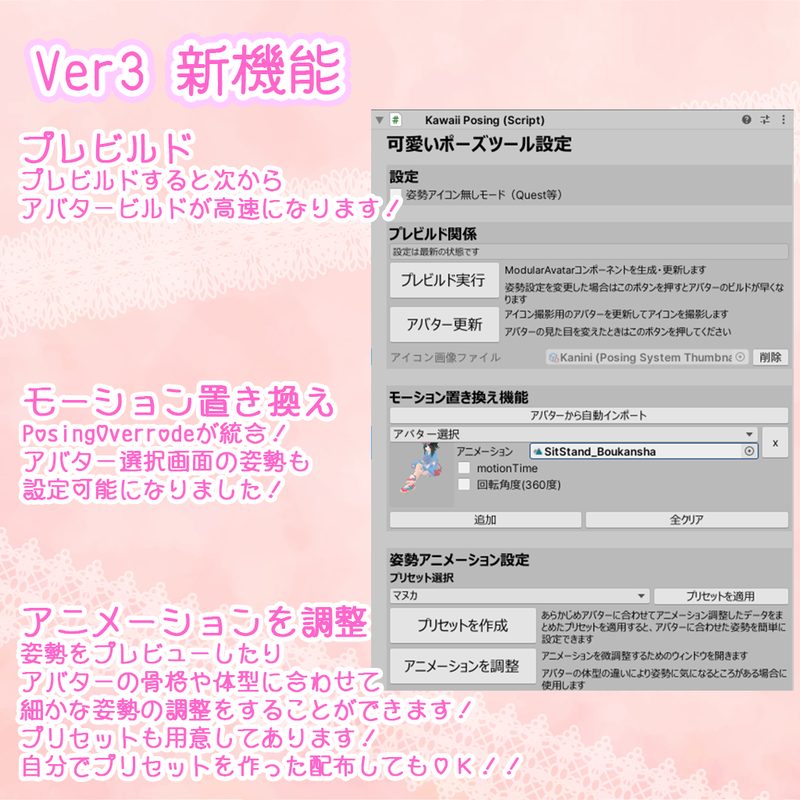
Motion replacement (the “Avatar Setup” tab in Ver3.1.0+)
You can replace standard motions such as standing and moving with any animations you like. In Ver3.1.0+, specify them per type in the “Avatar Setup” tab under “Use your own motions” → “Open import settings”. Automatic import of the poses your avatar already has is done by a separate setting, “Use original standing, crouching and prone poses” (in Ver3.1.0+ they are only detected during generation and are not written back to the manual import settings list. Types with a manual selection use the manual setting first, and “Clear manual selection” returns that type to automatic import).
- “Auto-import from avatar” (アバターから自動インポート) (Ver3.0.x) / “Use original standing, crouching and prone poses” (Ver3.1.0+): Detects and imports the avatar's own motions from its Base layer
- Types that can be replaced: Standing / walking / running / Standing only / Crouching / Prone / Jump / Short fall / Short landing / Long fall / Long landing / Avatar selection
- “Avatar selection” is a feature that changes the pose your avatar takes on VRChat's avatar selection screen (the menu preview) (Ver3.0.0). You can line your avatars up in your favorite poses
- If avatar-specific movement motions (floating movement, special jumps, etc.) were not imported automatically, assign them manually to the matching type with “Add”
- Automatic detection is based on state names (Stand/Crouch/Prone/Jump, etc.), so states with their own names, and states that use VRChat's standard motion files as they are, are not imported
- Note: To use “Standing only”, a BlendTree must be set for “Standing / walking / running”
Pose animation settings (the “Poses” tab in Ver3.1.0+)
- Select preset: Chooses and applies an adjustment preset for your avatar (in Ver3.1.0+ it is at the bottom of the “Avatar Setup” tab, and “Apply this preset” replaces the current pose settings. If you have adjusted content, save it before switching)
- Adjust animation: Opens the window for previewing and adjusting poses (see below)
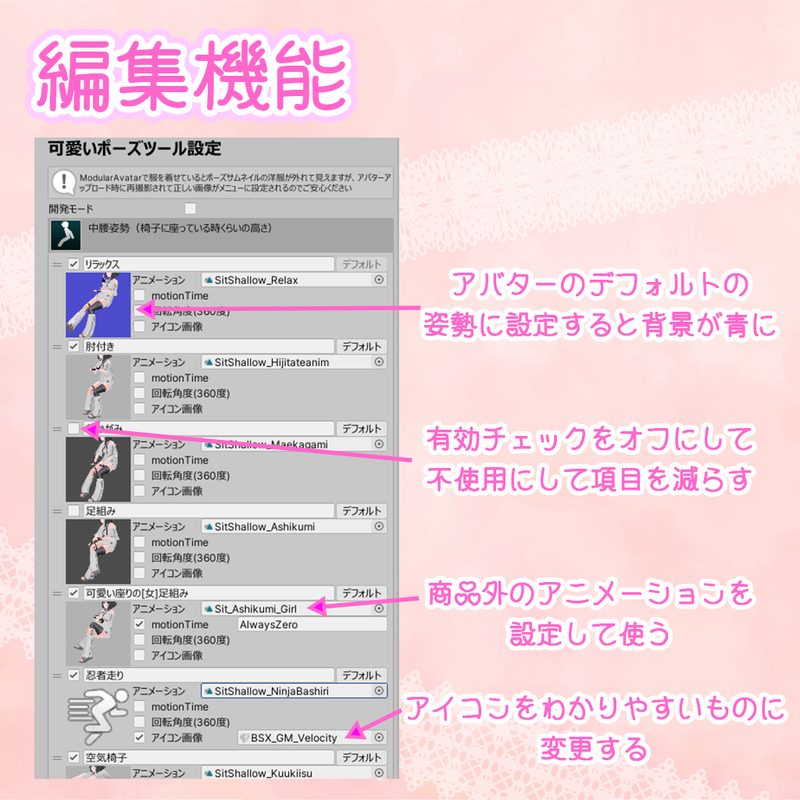
- There is a list for each pose group, and you can set the following for each pose. In Ver3.1.0+, choose a category on the left, and use the magnifying-glass tab at the top to search pose names across categories. You can add several animations at once by dragging and dropping them onto the add field or with “Import clips selected in Project”, and reorder them with “Order” in “Details” or the up/down buttons. “Preview” on each pose lets you check the pose in the Scene without opening the adjustment window (MA/NDMF build processing is not run, so it may differ from the final result with outfits, FloorAdjuster and so on). In Ver3.2.0+, outfits and hair worn with MA Merge Armature follow the pose in the preview too
| Item | Description |
|---|---|
| Enabled checkbox | When off, the pose is not shown in the in-game menu (you can reduce unneeded poses) |
| Display name | The name shown in the in-game menu. You can change it freely |
| “Default” button | Makes the pose the group's default pose (the preview background turns blue) |
| Animation | The pose's animation file. You can replace it with or add any .anim you like, such as one from another product |
| motionTime | When on, you can control the animation's playback position with the value of the specified parameter (an advanced feature, for example to stop a moving animation at any point. Specifying “AlwaysZero” holds it still on the first frame) |
| Rotation (turns) | Rotates the direction of the pose in degrees. For adjusting animations from other products that face an odd direction |
| Icon image | Uses an image of your choice for the menu icon instead of the automatically taken one |
| Adjustment clip | Adjustment data made with the Animation Adjustment feature. It is stored here when you apply a preset or save an adjustment |
| Enable roll over / Sideways roll-over pose / Ground correction strength (Ver3.1.0+) | Turn it on in a lying pose that should support rolling over, and specify a sideways animation (→ Roll Over in “Using it in-game”). Poses that use Roll Over cannot use motionTime |
- “Update thumbnail” (サムネ更新): Retakes the thumbnail images for the menu
- When you change any setting of a pose, that pose's preview image is discarded and recreated at the next capture
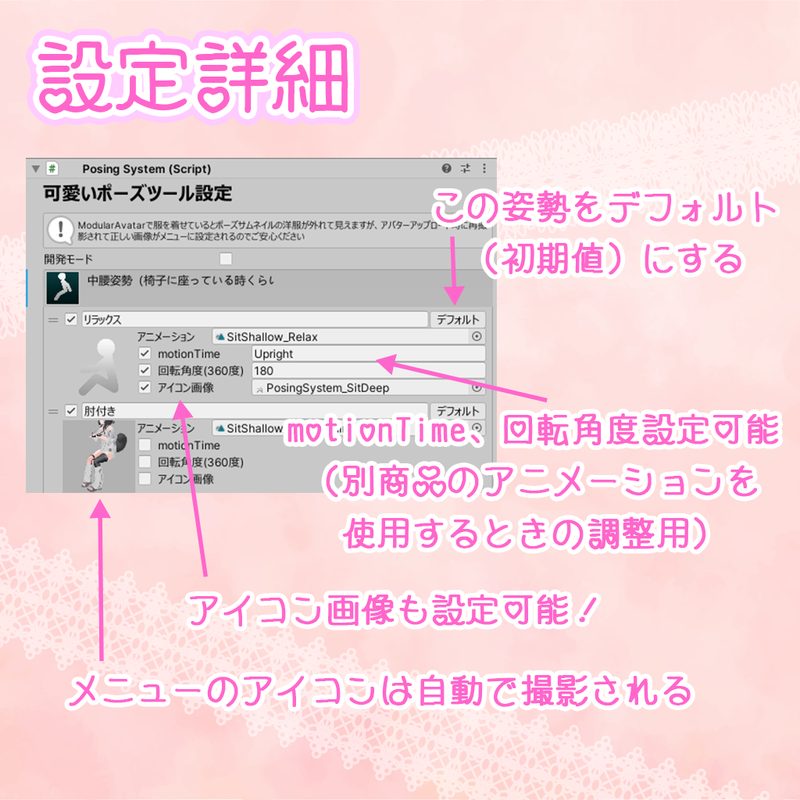
If you dress your avatar with Modular Avatar, the thumbnails in Unity may show the outfit coming off, but they are retaken when you upload and the correct images are set in the menu, so this is not a problem.
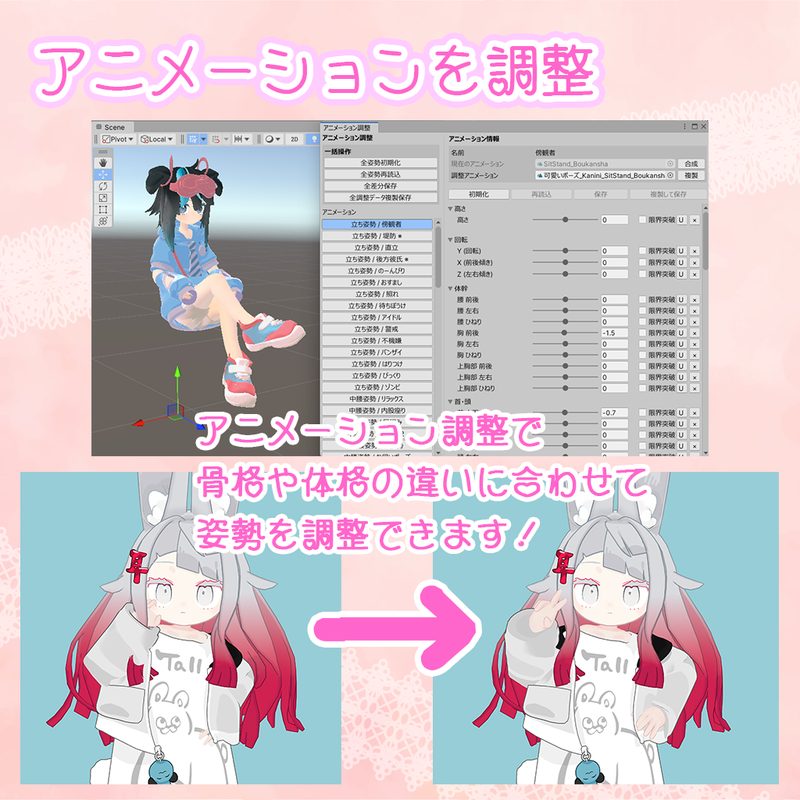
Animation Adjustment (Ver3.0.0+)
In the window opened with the “Adjust animation” button, you can adjust poses to your avatar's body shape while previewing the avatar in the scene.
- Adjustment items: Height (vertical position), Rotation (Rotation, Pitch, Roll), muscle values per body part (Torso, neck, head, legs, arms, wrists, fingers, etc. You can also copy from the opposite side)
- The “Extended” toggle makes the adjustment range 5 times wider (be careful, as your avatar may break)
- “Save” and “Copy/save” save the adjustment result as an adjustment clip. You can also merge it with an existing adjustment animation with “Merge” and duplicate it with “Copy”
- It is saved under
Assets/UnisakiStudio/GeneratedResources(note that deleting this folder loses your adjustments). If you give any folder the labelPosingSystemResourceFolder, the save location changes to that folder (advanced) - There are also batch actions (Reset all, Reload all, Save changed, Duplicate all)
- Selecting another object during the preview ends the preview. While the adjustment window is open, you cannot do other operations in the Inspector
- (Ver3.2.0+) While you edit or preview poses, outfits and hair worn with MA Merge Armature follow the preview pose too (in earlier versions they could stay in their original position). The original avatar's settings and placement do not change
- If poses are misaligned (sinking, floating or moving forward) on an avatar with an unusual build, adjust the height of the affected pose with this feature and save it
Automatic limb adjustment (IK) (Ver3.1.0+): In supported poses, the positions and directions of the hands and feet are adjusted automatically to fit your avatar's body shape (in Cool Posing, 43 of the 50 poses are supported; the remaining 7 poses use the conventional per-pose adjustment). It is enabled by default.
- In the Animation Adjustment screen, you can switch it for everything with “Enable automatic limb adjustment” and per pose with “Enable IK for this pose”. Poses that have no automatic adjustment show a note saying so
- “Bake IK into adjustments” writes the current result of the automatic adjustment into a new adjustment animation and turns off IK for that pose. You can then finish it by hand (available when automatic adjustment is enabled both overall and for that pose, and there are IK settings that can be applied)
- You can switch knee correction with “Prevent reverse knee bending” in the “Avatar Setup” tab and “Minimum knee bend (degrees)” in its details. “Enable avatar correction” can be used when matching correction data exists
Creating and sharing presets
- The “Create preset” button bundles the results of Animation Adjustment into a preset (specify the avatar name and the Prefab/FBX of the target avatar)
- The adjustment animation files and presets you create may be freely distributed and sold without permission from Unisaki Studio. Feel free to include them with your own avatars or share presets for unsupported avatars
Included adjustment presets
Cool Posing includes adjustment presets for the following 4 avatars (as of Ver1.0.0; more will be added in updates).
トネール / 狛乃 / 士堂 / 真央
When you add the tool to a supported avatar from the right-click menu, you are automatically asked “Apply the preset?”, and you can also apply a preset manually from “Select preset”. Even with a preset, additional adjustments may be needed depending on your avatar's modifications and body shape. If poses are misaligned on an unsupported avatar, correct them with “Adjust animation”, and save and share the result with “Create preset”.
About the old 8-bit Prefab (Ver3.1.0+)
From Unisaki Posing System Ver3.1.0, new additions use the regular Prefab only. Turning off unneeded items in the “Features” tab keeps usage down; pose selection alone uses 8 bits. The old 8-bit Prefab remains in each product's “Editor/Legacy” to keep references from avatars and presets where it is already placed, so you do not need to delete or replace the Prefab to keep using an existing 8-bit version. The step of choosing the 8-bit version from the right-click menu has been removed.
The differences between the standard version and the 8-bit version of Ver3.0.x and earlier are as follows (for reference).
| Standard version (17 bits) | 8-bit version | |
|---|---|---|
| Pose sync | ○ | ○ |
| Foot Height | Yes (synced to others too) | Local only (applies only to your own view) |
| Mirror | Yes (synced to others too) | Local only (applies only to your own view) |
With the 8-bit version you can still operate Foot Height and Mirror, but other players see you as if they were not applied. If other people's views matter, such as for photos, use the standard version.
Breakdown: the standard version syncs “selected pose (8 bits)” + “Foot Height (8 bits)” + “Mirror (1 bit)” to other players. The 8-bit version syncs only the pose. Lock Head, Lock Arms, Lock Feet, thresholds and similar operations are local processing to begin with (no sync needed), so they work the same in both versions.
Moving the menu
With the MA Menu Installer component on the product-name object in the “Menu” child object of the tool's object, you can move the menu to any submenu you like in the Expressions Menu. No script editing is needed.
Other detailed behavior and features
- Hierarchy warning icons: If the “Cool Posing” object has warnings (outdated prebuild, Auto-Footsteps on) or errors (placed outside the avatar, non-Humanoid, old-version folders remaining, etc.), an icon is shown in the Hierarchy (updated every few seconds)
- Development mode: A toggle at the top of the Inspector. When on, UI for internal checks appears, such as the standard Inspector view, toggling the display of the preview avatar and showing all hidden objects at once (not normally used)
- If you duplicate or replace the avatar: The icon images are discarded automatically and retaken at the next prebuild/avatar update
- Icon generation also runs during prebuild (Ver3.0.4+. Before that, it was a separate button)
- Faster pose switching in Desktop mode (Ver3.1.0): Shortens the delay before switching between standing, crouching and sitting is reflected in the selected pose. It is enabled automatically in normal builds and prebuilds (update prebuilds made with older versions before uploading)
- Unity dark theme support (Unisaki Posing System Ver3.0.2+)
- Batch adding preset definitions: The Inspector of a PosingSystemPresetDefines asset has a feature to add the hashes/names of target avatars from the clipboard at once (for preset distributors)
“Check settings” and error numbers (PS numbers)
In Unisaki Posing System Ver3.1.0+, “Check settings” at the top of the Inspector shows a summary such as “N errors” and “N warnings”, and each item comes with [PS number], description and fix.
- “Select affected object (PSxxx)”: Selects the object or asset with the problem in the Hierarchy / Project (in Ver3.1.2+, when the tool or its parent is disabled or EditorOnly and the shared Animator cannot be used, the name of that object is also shown and can be selected)
- “Check settings again”: Checks again after you fix something
- “View notices (N)”: Opens notices other than errors (Warning / Info)
- If the last prebuild or build failed, its details remain as “The previous operation did not finish.” Pressing “Ask about this error” opens the support site and puts a draft into the input field containing the error number, the versions of Unity and each tool, and the Console errors (paths and e-mail addresses that could be personal information are masked). Check and edit the content before sending. You can also copy it to the clipboard with “Copy previous failure details”
- In the Console and in build failure dialogs, it is shown in the form
[PosingSystem / PS0xx]. Dialogs shown when adding the Prefab have[PS04x]in their title
For the meaning of each PS number and how to fix it, see List of error codes (PS numbers) in the Troubleshooting chapter.
List of warnings and errors
| Message | Meaning and fix |
|---|---|
| The object is not inside a VRChat avatar object | Place “Cool Posing” inside (directly under) an avatar that has a VRCAvatarDescriptor |
| Legacy settings for XX remain on this avatar! | Settings of an old tool or another tool remain. You can remove them automatically with the “Remove XX settings” button |
| The legacy unitypackage folder “XX” is still in this project! | Remove it with the “Remove the XX folder” button (it cannot coexist with the old version) |
| “Use Auto-Footsteps for 3 and 4 point tracking” is on | When it is on, your avatar may step automatically in-game and break the pose. You can turn it off with the button in the warning, the button in “Settings” → “Troubleshooting” (the location differs by version), or directly in the VRCAvatarDescriptor. If you have no problem, you do not need to turn it off (→ Just standing, my legs move on their own into a bow-legged stance) |
| No Animator is set on the avatar / No Avatar is set / This avatar is not Humanoid | It can be used only with Humanoid avatars |
| No prebuild yet / The prebuild has not been run / The settings have changed / Settings have changed since the last prebuild | Press “Update prebuild” (“Run prebuild” (プレビルド実行) in Ver3.0.x). In Ver3.1.2+, you can check what changed with “Details” → “Show settings changed since prebuild”. If it appears every time you restart Unity even though you have not changed any settings, it may be a problem fixed in Unisaki Posing System 3.2.0 (avatars with their own Controller set in the Base layer and “Use original standing, crouching and prone poses” turned on). Update to 3.2.0 and press “Update prebuild” |
| The previous operation did not finish. | The last prebuild or build failed. Apply the fix for the PS number shown, then redo “Check settings again” or “Update prebuild”. “Dismiss previous failure” hides only the message |
| Restored the broken shared Animator reference from “XX” / Recreated the missing shared posing Animator from the standard Prefab (PS010–PS012) | A notice that a shared Animator reference lost through an update or similar was fixed automatically (Ver3.1.1+). You can go ahead and prebuild and upload |
Using it with other tools
Using Unisaki Studio tools together
- It can be used together with other tools that use Unisaki Posing System (Kawaii Posing, Virtual Love, etc.). Keep all the tools at their latest versions
Working with products from other shops
You can add any animation you like as a pose (set the animation file in the pose list in the Inspector). To use motion products from other shops, you need to purchase and download those products.
If you install several pose tools at the same time
- The shared parts of Unisaki Posing System are automatically merged into one, and parameters are adjusted automatically so they do not conflict
- The pose menus may be shown merged into the menu of one of the tools (by design)
- If the total number of poses exceeds 255, the sync parameters are extended automatically (1 bit is added each time the limit is exceeded). If you add a large number of poses, watch your remaining parameter budget
Other compatibility
- VRCFury: Can be used together with versions compatible with Modular Avatar (tested with Ver2)
- GestureManager: Tested. You can use it to check behavior in the editor
- Conflicts of tracking control with other gimmicks are resolved automatically by the “Integrate tracking features at build time” (トラッキング機能をビルド時に統合する) setting (on by default). If errors still appear, try unchecking it
- On avatars with avatar-specific movement motions (floating movement, special jumps, etc.), installing the tool may replace those motions with the standard ones. In that case, assign the avatar's own motions manually with “Motion replacement” (→ see the settings chapter)
About the license
How the license works
- The license is installed on the PC itself by importing カッコいいポーズツール.unitypackage included in the zip (not per project). Do it once per PC, and you can use the tool in all projects on that PC
- If you purchased on Gumroad, read “BOOTH” in this chapter as “Gumroad”, and “カッコいいポーズツール.unitypackage” as “CoolPosing_Installer.unitypackage”
- Windows, macOS and Linux are supported
- Without a license, an error is shown in the Inspector and the settings UI cannot be used
- Uploading the avatar itself is designed to work even without a license. If “there is no license and uploading also fails”, the cause is most likely an error from another tool
When “This computer is not licensed to use Cool Posing” appears
If the Inspector shows the error “This computer is not licensed to use Cool Posing (or Unisaki Posing System). Purchase the tool from BOOTH and install its license.”, the license is not installed on that PC. If you have purchased it, fix it with the following steps.
- Download the latest zip from BOOTH again and import the included カッコいいポーズツール.unitypackage. This (re)installs the license
- If the license is not installed even after importing, check whether errors appear in Unity's Console. Script errors from other tools interrupt the automatic license installation. Resolve the Console errors in order from the top
- If you received it as a gift, the steps are the same. Download the zip with the BOOTH account of the person who received it and import it
If you deleted the license by mistake
If you ran “License removal” under “Tools” → “Unisaki Studio” in the Unity menu, or deleted the license by mistake, import カッコいいポーズツール.unitypackage again to restore it. The licenses of other Unisaki Studio products are kept when you remove it.
If you get a new PC or use it on another PC
On a new PC too, you can use it the same way by downloading the zip from BOOTH and importing カッコいいポーズツール.unitypackage.
If the .bat file cannot be run (old versions)
Zips of old versions included a .bat file for installing the license (such as “1.可愛いポーズツールライセンスのインストール.bat”). If Windows Smart App Control or similar prevents the .bat file from running, try the following.
- Right-click the .bat file and choose “Run as administrator”
- If it still cannot be run, please contact support
In the current version, the .bat file is no longer needed; importing the unitypackage alone installs the license.
Migrating from older versions
Migrating from the unitypackage version (V1.x) to the VCC version
Early versions (V1.15 and earlier, etc.) were imported into the Assets folder as a unitypackage. They cannot coexist with the current VCC/ALCOM version. In projects where the old version remains, symptoms like these appear.
- Uploading fails with errors such as “Multiple types are specified for parameter SitShallow”
- New items (such as “Integrate tracking features of other AnimatorControllers” (他のAnimatorControllerのトラッキング機能を統合する)) do not appear in the settings
- In sitting poses, the body or hips sink into the ground, or the viewpoint sinks in
- Internal errors appear when uploading
- The right-click menu shows only “Tool settings screen” (ツール設定画面)
Migration steps:
- Save the scene, close Unity and back up the whole project. Move only the old version folders shown in Unity's warning (such as
Assets/UnisakiStudio/KawaiiPosing,PosingSystemandVirtualLove) and their matching .meta files to a place outside the project. Do not delete the wholeAssets/UnisakiStudiofolder (keep License, GeneratedResources and your own adjustment clips. If those folders contain adjusted data, first check whether it needs to be migrated) - In ALCOM (or VCC), remove “Cool Posing” and “Unisaki Posing System” from the project once
- Add both to the project again in ALCOM
- Right-click the avatar and add the tool to the avatar again with “Unisaki Studio” → “Add Cool Posing”
- Old version objects may become Missing, so keep the backup and the adjusted data until you have confirmed the images, poses and in-game menu on a new test avatar (for detailed steps, see How do I migrate from an old unitypackage version (such as V1.15) to the VCC version?)
- If remnants of the old version remain, a red warning and a button appear at the top of the Inspector of the “Cool Posing” object; press the button to remove them (“The legacy unitypackage folder “XX” is still in this project!” → “Remove the XX folder”; for old products such as Kawaii Sitting tool, “Legacy settings for XX remain on this avatar!” → “Remove XX settings”)
If something stopped working properly after updating
- First, bring all Unisaki Studio tools to the latest version. If the versions do not match between tools, conflicts may occur (Safe Mode, failed uploads, etc.)
- If the prefab has become
BrokenPrefabAsset, remove both “Cool Posing” and “Unisaki Posing System” in VCC/ALCOM once, add them again, and then add the tool to the avatar again - When you update only “Unisaki Posing System” in ALCOM / VCC, a dependency version conflict may be shown. Cool Posing 1.1.0 specifies the shared system 3.1.0, so the conflict appears in combination with the shared system 3.1.2, but if the conflicting package is Cool Posing 1.1.0, you can use them together as they are. Cool Posing 1.2.0 requires Unisaki Posing System 3.2.0 or later within 3.x. When you update to 1.2.0, update the shared system to 3.2.0 too
- If warnings such as “Restored the broken shared Animator reference” appear after an update, or poses can no longer be generated: this is restored and fixed automatically in Unisaki Posing System 3.1.1 and 3.1.2. Update to the latest version, press “Update prebuild”, save the scene and upload again
- If “Settings” → “Auto-Lock Head When Supine” disappeared from the menu in Ver3.1.0 or 3.1.1, the item comes back when you update to 3.1.2 or later and build again
- Alpha versions (with
-alphain the version name) are pre-release versions in development. If you want stable operation, use the stable version
Troubleshooting
First of all: check the Console
Most problems after installing the tool (the menu does not appear, poses do not change, you cannot upload, the license cannot be installed, etc.) are caused by errors of tools or gimmicks other than Cool Posing.
- Open the Console window from the Unity menu
- Press the “Clear” button
- Build (upload) your avatar
- Check the red errors shown, in order from the top. Errors that remain even after “Clear” are especially often the cause
- Resolve the errors of tools other than Cool Posing, then try again
Problems during installation
| Symptom | Cause and fix |
|---|---|
| “Unisaki Studio” does not appear in the right-click menu | The license is not installed, or there are errors in the Console. Reimport カッコいいポーズツール.unitypackage from the zip and resolve the errors in the Console |
| Menu items are grayed out and cannot be pressed | The license has not been installed. Same fix as above |
“Nothing To Do!” appears / Assets/UnisakiStudio is empty (shown hollow) | This is normal. The tool itself goes into the Packages folder. If “Unisaki Studio” is in the right-click menu, the installation succeeded |
| ALCOM says “package not found” | Check that the import of カッコいいポーズツール.unitypackage in the zip (automatic repository registration) has completed |
| The shortcut for adding to VCC/ALCOM gives an error | Install ALCOM, then reimport カッコいいポーズツール.unitypackage. If that does not solve it, contact support |
| Adding works in some projects but not in others | An error on the VCC/ALCOM side. If you are using VCC, try the same operation in ALCOM |
| Errors appear when importing / only empty files are created | Download the latest zip from BOOTH again and run it again (the distributed files once had a defect, which has been fixed) |
Problems in-game
| Symptom | Cause and fix |
|---|---|
| Only standing poses can be used / poses do not switch | Poses switch automatically according to head height. In Desktop mode, crouch with the C/Z keys; in VR mode, lower your head in real life, or lower your head height with the Space Drag of OVR Advanced Settings or with PlayspaceMover. Automatic switching stops while “Ignore Head Height” or “Lock Feet” is on. → My avatar never takes any pose other than standing |
| Lying poses do not work in Desktop mode | After pressing Z, change “Lying Height Threshold” in the in-game menu's Settings to 35% or higher |
| Floating when sitting on the floor / switching to a lying pose too soon | Lowering the “Lying Height Threshold” in the in-game menu's Settings keeps you from switching to a lying pose even when you get close to the floor |
| Turning on “Roll Over” does not make you roll over when you tilt your head | The head tilt is detected with VRChat's Contact feature (avatar interaction). In VRChat, go to Settings → Avatars → Avatar Interactions and turn on Self (when it is off, your own head cannot be detected). Also check that Lock Head is off and that the pose supports Roll Over (in Kawaii Posing, the supine poses “Legs Out”, “Relaxed” and “One Knee Up”. Your own lying poses need the “Enable roll over” setting in the pose list) |
| The lower body sinks into the ground when prone/supine | The in-game “Foot Height” parameter may be 0. Check in Settings that it is 50% |
| The legs move on their own into a bow-legged stance | This can happen when “Use Auto-Footsteps for 3 and 4 point tracking” in the VRCAvatarDescriptor is on. Note the current setting, turn it off and compare. Depending on the tool version, there is a button to turn it off in “Settings” → “Troubleshooting” in the Inspector (inside the warning on older screens). You can change it directly in the VRCAvatarDescriptor even if no warning is shown. If you have no problem, you do not need to turn it off. → Just standing, my legs move on their own into a bow-legged stance |
| The knees do not bend and the avatar skates when moving | When “Use Auto-Footsteps for 3 and 4 point tracking” in the VRCAvatarDescriptor is off, there is no movement animation (by design) |
| The menu appears but the pose menus do not / only “Lock Feet” and “Settings” appear | Menu generation was interrupted by an error from another tool. Resolve the Console errors |
| Nothing can be operated from the Expressions Menu | A known problem that occurred with Modular Avatar 1.12.0 or later has been fixed. Update the tool to the latest version |
| Switching poses quickly messes up the lower body | Wait until the pose transition has finished before the next operation. If it gets messed up, select the same pose again to complete the transition, and it will be fixed |
| Parts of the avatar disappear or the head gets locked after returning from AFK | This is being investigated as a known problem. If the latest version does not improve it, please contact support |
| In lying poses, the viewpoint shifts to the forehead or similar | This is caused by how VRChat itself works, and a fundamental fix is difficult |
| Motions and facial expressions do not move in MMD worlds | MMD worlds are not officially supported |
Position or height is off (avatars with unusual body shapes or bone structures)
On avatars with an unusual build or bone structure (Hips bone near the feet, edited bone scale, etc.), the height or position may be off (sinking, floating or moving forward) when you take a pose.
- First check that the in-game “Foot Height” is at the standard 50%, and compare in a place with a flat floor
- If only certain poses are affected, adjusting the height of that pose once with the Animation Adjustment feature (height adjustment) and saving it improves it
- If every pose is off, first check your avatar's height and scale, and whether you are using several tools that change the floor or height, such as FloorAdjuster, at the same time
- If this does not help, please contact support and include the name of the avatar you use. For detailed steps, see On certain avatars, the pose is misaligned, or the body sinks or floats
Ver3.2.0 fixed a problem where, if you changed the scale of the whole avatar or used MA Floor Adjuster, the head position was off in supine and other poses and your legs could be pulled straight in VRChat. The same problem also occurred in poses with Animation Adjustment and in some of your own poses. Updating to 3.2.0 and uploading again fixes it (even if you have prebuilt, it is corrected by the build at upload).
Problems uploading
If you can no longer upload your avatar after installing the tool, first try the following in order (from the official FAQ).
- Quit Unity once and restart it
- Update the tools you use, including Cool Posing, to the latest versions from ALCOM
- Uninstall Cool Posing from the project in ALCOM once, then add it again
- Uninstall “VRChat Package Resolver Tool” from the project
- After trying to upload, check the errors shown in Unity's Console and contact the creator of the related tool
| Symptom | Cause and fix |
|---|---|
| NullReferenceException or similar appears | This happens when Modular Avatar / NDMF are not installed. Add them to the project with VCC/ALCOM. If they are installed, check for errors from other tools |
| “Creating asset at path failed.” appears | The state of the Assets/UnisakiStudio/GeneratedResources folder may be the cause. Check that the folder exists, restart Unity (or right-click → Refresh) and build again. If your avatar's object name contains symbols such as /, remove them |
| “Multiple types are specified for parameter XX” | Settings of the old unitypackage version may be mixed with the VCC version. Back up the project and move only the old version folders out of the way, following the steps in “Migrating from older versions” (keep the adjustment clips and GeneratedResources). → “Multiple types are specified for parameter SitShallow” appears when uploading |
| Many memory errors such as Stack allocator appear | There may be a conflict with other tools or gimmicks. Check the gimmicks you use together and contact us with that information |
| Unity crashes or freezes | Check whether folders of the old unitypackage version remain, and after making a backup, move only those folders out of the way. It often depends on the environment, so if it keeps happening, contact us with the avatar, the tools you use together and the crash log |
| With other creators' gimmicks, errors appear in Posing System scripts / the lock features do not work | Switch the “Integrate tracking locks with other tools” setting in the “Avatar Setup” tab (in Ver3.0.x, “Integrate tracking features of other AnimatorControllers” (他のAnimatorControllerのトラッキング機能を統合する) in “Posing Override”) and try uploading again |
Problems in the Unity Editor
| Symptom | Cause and fix |
|---|---|
| The avatar got stuck in a strange pose | The “Reset avatar to T-pose” button in the Inspector (Ver3.0.1+) returns it to the pose of the original FBX (in Ver3.2.0+, it resets only the pose, without changing the body shape adjusted with bone scale or position or the placement of the avatar itself) |
| Right after installation, the avatar takes a pose like a push-up | Fixed in Unisaki Posing System Ver3.0.1. Update to the latest version |
| The prebuild cannot be run / nothing happens | First check the first red error at the time of the operation in Window > General > Console. Do not delete the adjusted “Cool Posing” or the generated data in GeneratedResources first; back up the project, then add the tool to a new test avatar from the right-click menu and compare the behavior. If it works when newly added, review the settings on the old object's side (placement, the Animator's Avatar, animation references). For detailed steps, see The prebuild cannot be run; nothing happens |
| The prefab becomes BrokenPrefabAsset | Remove “Cool Posing” and “Unisaki Posing System” from the project once, then add them again |
| “AddStateMachineBehaviour failed” appears when building (Ver3.1.x: PS051) | In most cases, an error has occurred in another tool. Check the Console, resolve the errors and try again |
| “The AnimatorController assigned to the shared posing Animator is invalid” appears (Ver3.1.x: PS013) | AnimatorOverrideController and similar cannot be used (by design). Return to the tool's standard Controller |
| After updating the tool, poses cannot be generated / the shared Animator reference was lost | This problem occurred when an old version's shared posing Controller remained in Assets, and it was restored and fixed automatically in Unisaki Posing System 3.1.1 and 3.1.2. Update to the latest version, press “Update prebuild” and then upload again |
| “Pose generation could not start because Unity script compilation failed.” (PS050) | There is a compile error somewhere in the project, possibly outside Cool Posing. Fix the original errors shown (up to 5) or the first red error in the Console. “Ask about this error” opens an inquiry draft that includes the versions of Unity and each tool and the error number. From Unisaki Posing System 3.2.0, the name of the tool where the error occurs is also shown, and you can see what the error is even right after restarting Unity or while the Console display is filtered |
| A compilation error (CS1061) appears in Unisaki Posing System scripts and the pose tool cannot be used (when using a Modular Avatar version older than 1.17.0) | Fixed in Unisaki Posing System 3.2.0. Update Cool Posing and “Unisaki Posing System” in ALCOM / VCC (3.2.0 requires Modular Avatar 1.16.2 or later and NDMF 1.14.8 or later) |
| Adjusted poses disappeared | Adjustment data is saved in Assets/UnisakiStudio/GeneratedResources. Deleting this folder loses your adjustments |
| Pose icons do not appear in builds for Quest (Android) | This is by design, to reduce size. Icons are not generated for the Android build target |
List of error codes (PS numbers)
In Unisaki Posing System Ver3.1.0+, errors and warnings have numbers starting with PS. You can find them in “Check settings” in the Inspector, as [PosingSystem / PS0xx] in the Console, and as [PS04x] in the title of the dialogs shown when adding the Prefab. For many items, you can select the affected object with “Select affected object (PSxxx)”. Please include this number when you contact us (it is added automatically when you use the “Ask about this error” button).
Common fix for the items that tell you to “download again” (PS011, PS013–PS016, PS020, PS030, PS031, PS041, PS042): Save the scene and make a backup, then remove Cool Posing and “Unisaki Posing System” in ALCOM / VCC once and add them again. If reinstalling does not fix it, contact us from “Help / Changelog” at the top of the Inspector. Do not delete the adjusted “Cool Posing” object or GeneratedResources.
Overall settings and placement (PS000–PS007)
| Number | Message shown | Fix |
|---|---|---|
| PS000 | Pose generation could not start because of configuration errors. (with a list of the error items) | Press “Select affected object” on each item in “Check settings”, fix what is shown and run it again |
| PS001 | The target pose tool was not found. | Select “Cool Posing” inside the avatar in the Hierarchy again |
| PS002 | No VRC Avatar Descriptor was found above the tool. | Close the Prefab editing screen and place the tool as a child of an avatar with a VRC Avatar Descriptor in the scene. A Prefab on its own in the Project cannot be prebuilt |
| PS003 | The avatar root has no Animator. | Check the Animator on the same object as the VRC Avatar Descriptor, and compare it with the avatar Prefab from the distributor |
| PS004 | The Animator Avatar field is None or Missing. | Put the Humanoid Avatar that matches the original model back into the Avatar field. Do not specify another avatar's Avatar |
| PS005 | The Animator does not reference a valid Humanoid Avatar. | Check the Humanoid setting and the Configure assignments in the original model's Inspector > Rig (follow the distributor's instructions first) |
| PS006 | The Head bone could not be found | Check Head in Rig > Configure, and check that the head bone has not been deleted in the scene |
| PS007 | The Chest bone is unassigned. (warning) | Only if the chest pose breaks, check Chest in Rig > Configure > Body. It is a separate item from Upper Chest; if there is no matching bone, do not force an assignment |
Shared posing Animator and menu (PS010–PS017)
| Number | Message shown | Fix |
|---|---|---|
| PS010 | The shared posing Animator is missing / cannot be used (“XX is disabled”, “has the EditorOnly tag”) | If it can be recreated, it is rebuilt automatically from the standard Prefab during prebuild or build (shown as a warning). If being disabled or EditorOnly is the cause, use “Select affected object” to check that object's active state and tag |
| PS011 | The shared posing Animator has no MA Merge Animator. | If it can be restored, it is recreated automatically. If not, apply the common fix (download again) |
| PS012 | The shared posing Animator has no assigned Animator Controller. | The prebuild tries to restore it from the standard Controller. If it cannot be restored, download Unisaki Posing System again |
| PS013 | The shared posing Animator requires a regular Animator Controller. | Animator Override Controllers cannot be used. Return to the standard Controller (common fix) |
| PS014 | The shared controller has no pose-control layers. | Check that no other Controller has been assigned to the shared posing Animator (common fix) |
| PS015 | The tool root has no MA Parameters component. | Common fix (download again) |
| PS016 | The pose menu generation target was not found. | Check that the pose menu inside the tool has not been deleted or disabled (common fix) |
| PS017 | The pose menu target is on another avatar or outside this avatar. | Specify a menu generation target inside this avatar as Submenu Root |
Pose list (PS020–PS028, PS070, PS071)
| Number | Message shown | Fix |
|---|---|---|
| PS020 | The pose list data is missing. | Apply a preset again, or compare with the pose list of a newly added tool (common fix) |
| PS021 | Data for pose-list category N is missing | Check that category and restore it from a preset or backup |
| PS022 | No poses are enabled in “XX” (information) | The selection menu for that category is not generated. Enable the poses you want to use. If it is empty on purpose, nothing needs to be done |
| PS023 | More than one default pose is selected in “XX” (warning) | Select only one default pose in the pose list |
| PS024 | Pose data for item N in “XX” is missing | Remove that item from the pose list and add the animation you need again |
| PS025 | XX has no animation (warning) | Specify an animation or disable that item |
| PS026 | XX uses a Legacy animation | Specify an animation that can be used with Mecanim. If it comes from the original model, also check the Rig settings |
| PS027 | XX has no Motion Time parameter name | Set the Motion Time parameter name or disable Motion Time |
| PS028 | A custom icon is enabled for XX, but no image is assigned (warning) | Specify an icon image, or disable the custom icon to use automatic generation |
| PS070 | Roll over for XX requires a Humanoid AnimationClip | Specify Humanoid clips for the center and the sideways pose. BlendTrees, Legacy clips and clips without body curves cannot be used |
| PS071 | The Ground correction strength of XX is out of range | Specify a value from 0 to 1 |
Generation and conversion (PS030–PS036, PS050–PS053)
| Number | Message shown | Fix |
|---|---|---|
| PS030 | The standard Controller could not be found in the package. / The standard PosingSystemLocomotion.controller could not be found, so its reference cannot be restored | Common fix (download again) |
| PS031 | The empty animation included with the tool could not be found. | Common fix (download again) |
| PS034 | Failed to calculate the avatar's height. | Check the Humanoid setting and the Head bone. For details, check the inner exception in the Console |
| PS035 | Failed to convert pose “XX / XX” | Check that animation and its adjustment clip. To narrow down the cause, temporarily disable that pose and run it again |
| PS036 | The pose thumbnails cannot be updated because preprocessing of the avatar build failed. (added in Ver3.2.0; shows the name of the tool where the error occurs and the error details) | Check and resolve the error of the tool shown in the Console, then update the pose thumbnails again. It also stops because of errors in tools other than Cool Posing |
| PS050 | Pose generation could not start because Unity script compilation failed. (shows up to 5 of the original compilation errors) | Fix the first compile error in the Console, and run it again after recompilation has finished. It also stops because of errors in tools other than Cool Posing. From Ver3.2.0, the name of the tool where the error occurs is also shown |
| PS051 | Could not generate the VRCAvatarParameterDriver for state “XX” / Could not add SDK XX to pose “XX” | Check the preceding error in the Console and the versions of Unity, the VRChat Avatars SDK and Posing System (usually caused by an error from another tool) |
| PS052 / PS053 | Recreated the MA Merge Animator for breathing / Restored the breathing Controller reference from the standard Controller (information) | A notice of automatic repair. Nothing needs to be done |
Dialogs shown when adding the Prefab (PS040–PS043)
| Number | Message shown | Fix |
|---|---|---|
| PS040 | Select a destination / Check the destination | Select an avatar with a VRC Avatar Descriptor (or one of its children) in the Hierarchy before adding. You cannot add the tool to a Prefab in the Project or in the Prefab editing screen |
| PS041 | Tool prefab not found | カッコいいポーズツール.unitypackage (for the license) alone does not complete the installation of the tool itself. Check in ALCOM / VCC that Cool Posing and “Unisaki Posing System” have been added to the project |
| PS042 | Could not load prefab | The Prefab is damaged or the Posing System component is missing. Check the Console for Missing Script and compilation errors, then apply the common fix (download again) |
| PS043 | Could not place prefab | Check the Console for import errors such as Missing Prefab, reopen the scene and run it again |
Photo Mode (PS080, PS081)
| Number | Message shown | Fix |
|---|---|---|
| PS080 | The head bone already has VRC Head Chop configured. | Turn off “Keep your head visible in Photo Mode”, or review the Head target of your existing Head Chop settings. Settings on other bones, such as ears, can stay as they are |
| PS081 | The number of VRC Head Chop components has reached the VRChat limit. | Turn off “Keep your head visible in Photo Mode”, or consolidate your existing VRC Head Chop components to free one component slot |
For detailed steps by symptom, also see the Q&As in “What to do when you have a problem (find by symptom)”: for placement (PS002, PS016, PS017), I get errors about where the tool is placed or where the menu is generated; for the Animator and bones (PS003–PS007), What should I check for errors about the Animator, Avatar, Chest or Head?; for the pose list (PS023–PS027), How do I fix errors about unassigned animations, the default pose or Motion Time in the pose list?; for Prefabs and Missing (PS041–PS043), How do I recover when the Prefab cannot be found or a Missing Script appears?.
If the problem is not solved
Please contact us through the support site or BOOTH messages, with the following information.
- The name of the avatar you use (and a summary of any modifications)
- The version of Cool Posing and the version of Unisaki Posing System
- The versions of VRChat SDK and Modular Avatar
- Other tools and gimmicks you use together with it, and their versions
- The full text of the errors shown in the Console (copy & paste) or screenshots of the problem
- Whether you use VR mode or Desktop mode, and the VR device you use
FAQ
Which Unity version is supported?
It supports the Unity version officially recommended by VRChat. Projects set up by VCC/ALCOM can be used as they are.
Can I use it with any avatar?
Basically, any avatar that supports the Humanoid rig can be used. However, depending on the body shape and bone structure, the pose position may need adjusting (you can adjust it with the Animation Adjustment feature).
Can I use it with full-body tracking?
The pose features cannot be used during full-body tracking (FBT). This tool is for 3-point tracking and Desktop mode.
Where can I check the latest version?
New versions are announced on the official Unisaki Studio X account (@unisakistudio). The version shown on the BOOTH product page may be out of date, because the VCC version no longer requires an updated zip.
Can I move the menu into a submenu of my choice?
Yes. Change the install location with “Select Menu” in the MA Menu Installer component attached to “Cool Posing” in the “Menu” child object inside the tool's object. You do not need to edit any scripts.
May I use the animation data in my own creations (such as games) or in videos and streams?
You may use it within the scope of the Terms of Use. If you are unsure, for example about commercial use, please contact us individually through BOOTH messages or the support site (use in a commercial game has been permitted in the past. We would be happy if you credit us).
May I distribute or sell avatars that include the tool?
As stated in the Terms of Use, licensing to third parties within online services, including publishing a public avatar in VRChat, is permitted. Including it in a format that “sells usage rights without handing over the data”, such as the official VRChat marketplace, is also allowed (no usage fee or credit is required). Redistributing the tool's data itself is not allowed. If you are unsure, please contact us.
Cool Posing includes the VN3 Terms of Use “ゆにさきスタジオ販売・配布データ利用規約(日本語版)Ver1.0.0.pdf”, which apply to all data sold and distributed by Unisaki Studio. Be sure to read them before use.
May I make and sell unofficial companion tools or compatible products?
Selling them is fine as long as you clearly state that they are “unofficial”. For detailed conditions or official certification, please contact us individually.
Can I get a refund?
Due to BOOTH's policy and the nature of digital content, we generally do not offer refunds. Please read the product description carefully before purchasing.
I purchased it but cannot download it
Check “Purchased items” (購入した商品) on your BOOTH My Page. If no download link appears, contact BOOTH support. If you purchased on Gumroad, you can download it from the link in the email you receive at purchase, or from your Gumroad Library.
What to do when you have a problem (find by symptom)
Q&As for finding problems in Unity by symptom. For each procedure, back up your project first, and proceed while keeping your adjusted “Cool Posing” object and the generated data in Assets/UnisakiStudio/GeneratedResources.
Item names and layout differ by product and version. For the meaning of PS numbers, see List of error codes (PS numbers). In versions without “Check settings” or PS numbers, check the first red error in Unity's Console (Window > General > Console).
How do I recover when the Prefab cannot be found or a Missing Script appears?
- [Unity → ALCOM / VCC] Save the scene and bookmark this page. Close Unity and duplicate the whole project as a backup. In ALCOM / VCC, select the project you are working on and check that both the product package and “Unisaki Posing System” are installed. Importing the BOOTH license unitypackage alone does not install the tool itself
- [ALCOM / VCC] If ALCOM has an operation to reinstall the selected packages, select the product package and “Unisaki Posing System” and run it. If there is no reinstall operation, note the installed names and versions, remove the product package first and then the shared system, and add the shared system first and then the product package. If other products that depend on them are also listed for removal, note their names too and restore them the same way. Do not delete the folders inside Packages all at once
- [Unity] After the import has finished, open Window > General > Console. If there are red errors starting with “error CS”, first check the compatibility and installation state of the package the file belongs to. Do not remove Missing Scripts just to clear red errors. If a warning about old-version folders appears, see How do I migrate from an old unitypackage version (such as V1.15) to the VCC version?
- [Unity in the backed-up project] Before deleting the old object you have adjusted, add the product to a new test avatar from the right-click menu and prebuild it. If it works when newly added, suspect something missing on the old object's side and compare the pose list, adjustment clips and settings. Keep GeneratedResources and your adjusted animations. Only if the same Missing continues in both cases, go on to Even after comparing a normal reinstall with a fresh addition, the same Missing error continues
How do I migrate from an old unitypackage version (such as V1.15) to the VCC version?
- [Unity] Save the scene and close Unity. Make a backup of the whole project and try the migration on that copy
- [ALCOM / VCC] Add or update the package of each product you use and “Unisaki Posing System”. If you use both “Kawaii Posing” and “Cool Posing”, you need both product packages. If license or repository registration is needed, check the official installation steps of the product you purchased
- [Copied project] Note the exact location of the old-version folder shown in Unity's warning. Close Unity and move only that folder and its matching .meta file to a place outside the project. Do not delete the whole
Assets/UnisakiStudiofolder. Keep License, GeneratedResources and your own adjustment clips. If that folder contains adjusted data, it needs to be migrated, so stop there and check - [Unity] Reopen the project, check the Console for compile errors, then add the tool to a new test avatar from the right-click menu and prebuild it. Objects of the old version may become Missing, so keep the backup until you have compared and migrated your adjustments
- [Check] The migration is complete once you have checked the images, poses and in-game menu. Do not assume that all your old-version adjustments were carried over just because the prebuild succeeded. If the Prefab cannot be found, go on to How do I recover when the Prefab cannot be found or a Missing Script appears?
For a list of symptoms caused by coexistence with the old version, also see the chapter “Migrating from older versions”.
My avatar never takes any pose other than standing
These steps are for Kawaii Posing and Cool Posing.
- [In VRChat] Switch to the avatar you uploaded and open the Expressions Menu → the menu of the product you use. “Settings” here means the in-game menu. Unity's Inspector is the screen for editing the settings and poses built into the avatar
- [In VRChat] Choose the poses to use in “Select Pose”. Even if you select a sitting pose, it may not switch to sitting while your head is at standing height. Check by using the C / Z keys on desktop, or by safely lowering your head in VR. If you have changed the key bindings, check VRChat's control settings
- [In VRChat] If you want automatic switching, turn off “Ignore Head Height” and “Lock Feet” for now and compare. If you want to use a specific pose while standing, open the pose group you want and try “Ignore Head Height”. If you want your arms to follow the pose, use “Lock Arms”; if you want them to follow your controllers, release that lock. The items shown differ by product and by the features enabled
- [In VRChat] If it does not switch to lying poses, check the Lying Height Threshold in the product's “Settings”. First note the current value, then change it a little and compare. If adjusted in-game settings are saved, re-uploading the avatar alone may not reset them to their defaults
- [Testing in Unity] Do not judge only by what Play mode shows with Gesture Manager or similar tools; compare in VRChat in Desktop mode or with 3-point tracking. If the in-game menu itself is missing, check whether the tool is enabled in Unity and the first red error during the build. Even if “Check settings” in the tool shows no problems, it cannot detect build errors of other gimmicks
What should I do if the images in the pose list are gray or not shown?
- [Unity] In the Hierarchy, select the pose tool inside the avatar. If the Animation Adjustment window is open, finish editing, save and close it
- [Unity Inspector] Run “Update prebuild” (“Prebuild” in some screen layouts). If a failure message appears, deal with it first. Even for PC, no images are generated if “Generate pose icons” is off (in Ver3.0.x, if the no-pose-icon mode in “Settings” is on). Images are not generated for Android, so check in a PC project
- [Unity Inspector] If there are no images even after prebuilding, or if you changed outfits, use “Details” → “Retake icons” in Prebuild (in older screens, the corresponding operation to regenerate or update images). For poses with your own icons, check that the image reference is not None / Missing
- [Check] It is done when your avatar's images appear in the pose list. If they are still gray, check the red errors in the Console and determine whether image generation is disabled, the project is for Android, or generation failed. You do not need to delete image files or GeneratedResources first. If PS036 (pose thumbnails cannot be updated because of another tool's error) appears, resolve the error of the tool shown first
On certain avatars, the pose is misaligned, or the body sinks or floats
- [In VRChat] Check in a place with a flat floor, and if the product's “Settings” has Foot Height, note its current value. The standard reference is 50%. Compare before and after a change so that you can keep intentional height adjustments
- [Unity] Update the prebuild, build and upload, and then check on the same avatar. Even after uploading new settings, check the Foot Height and thresholds saved in-game separately. If the head position is off and the legs are pulled straight in supine and other poses, it may be a problem that was fixed in Unisaki Posing System 3.2.0 (see Position or height is off (avatars with unusual body shapes or bone structures))
- [Backed-up project] Check whether you have several tools that change the floor or height, such as Floor Adjuster. Disable them one at a time and compare, so that the same correction is not applied twice. There have been cases where switching to MA Floor Adjuster helped, but this change is not necessary for everyone. If you switch, do not enable it at the same time as the old correction, and follow the distributor's instructions
- [Compare in Unity / VRChat] If only specific poses are affected, check the height in Animation Adjustment first; if all poses are affected, check the avatar's height and scale and the tools used together first. Compare whether it floats in standing, sitting or lying poses, and check again after prebuilding and uploading again. If PS034 appears, fix the Humanoid and Head settings before adjusting the look (What should I check for errors about the Animator, Avatar, Chest or Head?)
What should I check for errors about the Animator, Avatar, Chest or Head?
- [Unity] Press “Select affected object” in “Check settings”. Check that there is an Animator on the same object as the VRC Avatar Descriptor, and that its Avatar field is not None / Missing. Do not assign another avatar's Avatar instead
- [Unity Project] Select the original model and check Head and Chest in Inspector > Rig > Configure. Back up before changing anything, and compare with the settings recommended by the avatar's distributor
- [If Chest is already set] PS007 does not appear just because Upper Chest is empty. If a different error saying that the chest bone is not set continues, select the first red error in Window > General > Console and check the script name and origin in its details. Do not treat filling in Upper Chest as a universal solution
- [Check] Use “Check settings again” to see whether the error is resolved, then run the prebuild. If the same error appears even with the original distributed avatar, include that comparison and the origin shown in the Console in your inquiry
The first import or compilation never finishes, and I cannot use Unity
- [Unity] Check whether the name of the process in the progress display changes. The time needed depends on your PC and the size of the project, so do not conclude the cause from the time alone. Note the displayed name and how long it has been stuck
- [If you can operate Unity] Save the scene, quit, and back up the project. If you cannot operate it and have to quit, make sure that you accept losing unsaved edits, then use the OS to end it
- [ALCOM / VCC] Check the supported Unity version for that project and the installation state of the product package, Unisaki Posing System, Modular Avatar and NDMF. Do not swap packages while Unity is running; update or re-fetch them to a compatible combination, then reopen the project
- [Isolating the cause] Keep the existing project as it is, and compare by adding only the product and the required dependency packages to a new Avatars project with the same supported Unity version. Decide where to look next by whether it also stops in the new project or only in the original one. Do not delete Assets or Packages just because it takes a long time
- [If it happens again] Contact us with the name of the process where it stops, the package versions and the result in the new project. Even if you cannot open the editor, official support is available from your browser
I get errors about where the tool is placed or where the menu is generated
- [Unity] If Prefab editing mode is open, save your edits and return to the scene. In the Hierarchy, select the avatar that has the VRC Avatar Descriptor and add the product from “Unisaki Studio” in the right-click menu. The Prefab itself in the Project window is not where you add it
- [Unity] Place an existing pose tool as a child of the avatar you want to use it on. Check the parent-child relationship in the Hierarchy to make sure it is not under another avatar or directly in the scene root
- [Unity] If you set Submenu Root manually, specify a menu destination inside the same avatar. If you deleted the tool's internal menu, compare it with the structure of a newly added tool
- [Check] When the placement error disappears after “Check settings again”, run “Update prebuild”
How do I fix errors about unassigned animations, the default pose or Motion Time in the pose list?
- [Unity Inspector] Open the relevant category in the pose list, and open “Details” of the item with the number given in the error. If the animation is None / Missing, assign the clip you want to use, or disable the item if you do not use it
- [Unity Inspector] If there are several default poses, narrow them down to one. For items with Motion Time enabled, set the parameter name; if you do not use it, turn Motion Time off. Replace Legacy clips with ones that the distributor provides for Mecanim
- [If data is missing and the list cannot be opened] Back up the scene and compare with the original preset or a backup from before your adjustments. Adding the same product to a new test avatar lets you see the standard pose list. Do not delete the adjusted object first; keep the remaining adjustment clips and restore from them
- [If it fails on a specific pose during conversion] Temporarily disable only the pose named in the error and prebuild. If it succeeds without that pose, check the source clip and the adjustment clip one at a time. Afterwards, return the poses to the enabled state you intended
Generated files cannot be saved or duplicated
- [Unity] Select the first red error in Window > General > Console and check the destination folder and details such as insufficient permissions or disk space
- [OS] Check the free space on the destination drive, the write permission for the folder, and access restrictions by sync software or security software. Do not lift restrictions across the board; isolate the cause by checking whether you can save an ordinary file to that folder
- [Unity] Check that the output folder appears in the Project window; if you moved it outside Unity, run the prebuild again after Unity has finished refreshing. Do not delete the adjusted files in the output folder all at once
Even after comparing a normal reinstall with a fresh addition, the same Missing error continues
First try the normal recovery steps in How do I recover when the Prefab cannot be found or a Missing Script appears?.
- [Only if Missing continues after re-fetching · Unity 2022.3] In some inquiries, rebuilding the shared cache restored things, but this does not establish the cause. Make sure you have an internet connection and enough free space to download again, and quit all Unity Editors, Unity Hub and ALCOM / VCC. On Windows, enter
%LOCALAPPDATA%\Unityin the address bar of File Explorer, and rename thecachefolder there to an unused name such ascache-backup-日付to keep it. The default location is~/Library/Unity/cacheon macOS and~/.config/unity3d/cacheon Linux. If you have changed the location or the folder does not exist, do not guess; check the official Unity documentation. This cache is shared with other projects, and its contents will be downloaded again next time. Do not change Assets, Packages or ProjectSettings - [ALCOM / VCC → Unity] Re-fetch the packages the normal way, then open Unity and check again by adding the tool to a new test avatar. If things get worse, close all the apps, keep the newly created cache under another name, and give the folder you set aside its original name again. If it does not improve, do not keep re-fetching; include the first red error and whether it also happens with a fresh addition in your inquiry. Setting the cache aside is a way to isolate the cause based on recovery cases, not a procedure that Unity officially recommends for all symptoms
The right-click menu shows only “Tool settings screen” (ツール設定画面). The menu differs from the description on the product page
You may be using the old unitypackage version. First check the version and the errors in the Console. If migration is needed, back up the project first, and compare and migrate using the steps in How do I migrate from an old unitypackage version (such as V1.15) to the VCC version?. Do not delete adjusted objects or folders all at once first.
Just standing, my legs move on their own into a bow-legged stance
The “Use Auto-Footsteps for 3 and 4 point tracking” setting of the VRC Avatar Descriptor may be the cause. Note the current setting, turn it off and compare. Depending on the tool version, there is a button to turn it off under “Settings” → “Troubleshooting” (in older screens, it is in the warning). Even if no warning appears, you can check it in the Avatar Descriptor. If there is no problem, you do not need to turn it off. If it does not improve, restore the original setting and also check the tools used together and your tracking settings.
“Multiple types are specified for parameter SitShallow” appears when uploading
Settings of the old unitypackage version may be mixed with the VCC version. Check the parameter name and the origin shown in the Console. If the old version remains, back up the whole project first and migrate using the steps in How do I migrate from an old unitypackage version (such as V1.15) to the VCC version?. Check the exact location of the old-version folder and whether it contains data you made yourself, and keep your adjustment clips and GeneratedResources. Keep the original adjusted data until you have checked the prebuild, poses and in-game menu on a newly added test avatar. If there is no old version, check for parameter type conflicts with other gimmicks.
The prebuild cannot be run; nothing happens
Check the first red error in Window > General > Console at the time of the operation. In versions that have “Check settings”, also check its error number, target and fix (List of error codes (PS numbers)). From Unisaki Posing System 3.1.1, if the project has compile errors, the build stops at the start and explains the cause as PS050. From 3.1.2, up to 5 of the original compile errors are shown, and “Ask about this error” opens an inquiry draft that includes version information. From 3.2.0, the name of the tool where the error occurs is also shown, and you can see what the error is even right after restarting Unity or while the Console display is filtered. Check, in order, the placement (I get errors about where the tool is placed or where the menu is generated), the Animator's Avatar (What should I check for errors about the Animator, Avatar, Chest or Head?), the animation references of the poses (How do I fix errors about unassigned animations, the default pose or Motion Time in the pose list?) and the write permission for the output folder (Generated files cannot be saved or duplicated); if required files are missing, compare a normal re-fetch with a fresh addition using the steps in How do I recover when the Prefab cannot be found or a Missing Script appears?. Do not delete adjusted tools or GeneratedResources first. If it is not solved, include the step where it stopped, the product version and the first red error in your inquiry. Before attaching anything, check it for user names, file paths and unnecessary information.
Removing it from your avatar
Cool Posing is a non-destructive tool based on NDMF, so it does not rewrite your avatar's own data (FX layer, Expressions Menu, parameters, etc.). Removing it takes just one step.
- In the Hierarchy, select the “Cool Posing” object directly under the avatar and delete it (Delete key, or right-click → Delete)
- The same applies if you have prebuilt. The Modular Avatar components generated by the prebuild are created inside the “Cool Posing” object, so they are removed together with the object
- When you upload the avatar again after deleting it, the pose menu in VRChat disappears too
- Generated files such as pose adjustment data and thumbnails remain in
Assets/UnisakiStudio/GeneratedResources. You may delete them if you no longer need them (note that the adjustment data of other avatars in the same project are in the same folder) - To remove the tool itself from the project, remove “Cool Posing” and “Unisaki Posing System” in ALCOM (or VCC). The license remains on your PC, so if you add them again you can use them right away
The “Remove XX settings” and “Remove the XX folder” buttons that may appear in the Inspector are shown only when settings of old products (the unitypackage versions of Kawaii Sitting tool, Sleep-together tool and Virtual Love) or folders of the old unitypackage version remain. They are not buttons for removing Cool Posing itself. If you used an old version, see the steps in “Migrating from older versions”.
Contact
For unresolved problems, bug reports and requests, please contact us below.
Changelog
A list of the features added and fixes made in each version (from the package CHANGELOG and the BOOTH update history). New versions are announced on the official X account (@unisakistudio).
| Version | Date | Details |
|---|---|---|
| 1.2.0 | 2026-11-22 | Supports 30 languages (for Unisaki Posing System 3.2.0). The Inspector, editing operations, setup dialogs, standard pose names and the generated VRChat menu can be shown in 30 languages. The language choice for the Inspector and the in-game menu was unified (the default is your PC's language; the last choice is also used in other projects of the same OS user). The README, changelog and usage guide can be opened in the selected language. Display names for the 128 standard poses and descriptions of every feature were prepared. The avatar's existing settings, custom names, asset references, parameter identifiers and the way licenses are stored remain as before. For the system-side (3.2.0) fixes, see the shared system section below |
| 1.1.0 | 2026-11-07 | Major update (for Unisaki Posing System 3.1.0). Set up automatic limb adjustment (IK) in 43 of the 50 poses (the remaining 7 poses use the conventional per-pose adjustment). Added Photo Mode (position and direction adjustment, with choices for syncing and head visibility), “Floor Height” (moves the whole body up or down by 3 m), breathing motion, a setting to stop VRChat's default sway, reduction of pose distortion from head rotation, and Roll Over (usable in poses for which you set a sideways motion yourself; the included poses contain no roll-over motions). Added dedicated menu icons for Breathing, Roll Over, Floor Height and Photo Mode. Reorganized the Inspector into three tabs so that you can check the features in use and the parameter usage. Added pose search, bulk adding, reordering and a simple preview in the Scene. Faster pose switching in Desktop mode. Discontinued adding the 8-bit Prefab and unified it into feature selection in the regular Prefab. Changed the minimum VRChat Avatars SDK version to 3.10.4 and NDMF to 1.14.0 |
| 1.0.0 | 2026-09-06 | Official release (50 poses, regular and 8-bit Prefabs). Includes 4 avatar presets (トネール, 狛乃, 士堂, 真央) |
Cool Posing 1.1.0 specifies “Unisaki Posing System” 3.1.0, so if you update only the shared system to 3.1.1 or 3.1.2, ALCOM / VCC may show a version conflict. If the conflict is with Cool Posing 1.1.0, you can keep using 1.1.0 together with the shared system 3.1.2 (for the fixes in 3.1.1 and 3.1.2, see the shared system entries below).
Main fixes and changes in the shared system “Unisaki Posing System” 3.2.0 (2026-11-22): Display in 30 languages (→ Choosing the display language (Unisaki Posing System Ver3.2.0+)) / When poses cannot be generated because of a compile error (PS050), the name of the tool causing the error is shown, and the error details can be checked even right after restarting Unity or while the Console display is filtered / When pose thumbnails cannot be updated because of an error in another tool (PS036), that tool's name and the error details are shown / Faster “Update prebuild” (the more poses with Roll Over set up, the bigger the effect) / When feature descriptions in Japanese or Chinese wrap, lines no longer start with “。” or “、” / Fixed a problem where avatars with their own Controller in the Base layer and “Use original standing, crouching and prone poses” turned on could ask for a prebuild update every time Unity was restarted / Fixed a problem where outfits and hair worn with MA Merge Armature stayed in their original position while editing or previewing poses / Fixed a problem where, with a scale change of the whole avatar, MA Floor Adjuster, poses with Animation Adjustment or some custom poses, the head position in supine and other poses was off and the legs could be pulled straight in VRChat / Fixed a compile error (CS1061) with Modular Avatar versions before 1.17.0 / “Could not measure RootT displacement for roll-over head centering.” no longer stops the prebuild or build (that pose is not corrected, and a warning is shown in the Console) / Fixed a problem where, if you stood up before landing right after jumping to roll over while lying, you stayed in the lying pose / Fixed a problem where your feet did not take the shape of the pose after sitting on a world chair or similar for only a few seconds, and a problem where in Desktop mode the viewpoint did not match the pose after standing up from a chair / Fixed a problem where “Reset avatar to T-pose” also reset the body shape and the position, rotation and scale of the avatar itself (it now resets only the pose) / Changed the required versions to Modular Avatar 1.16.2 or later and NDMF 1.14.8 or later. To update, update Cool Posing to 1.2.0 together with “Unisaki Posing System” to 3.2.0 in ALCOM / VCC, and if you use a prebuild, press “Update prebuild” once before uploading again. Settings already placed are carried over.
Main fixes and changes in the shared system “Unisaki Posing System” 3.1.2 (2026-11-09): Fixed a problem where, with “Reduce pose distortion from head rotation” on, your face kept looking up even after standing up from lying face down / “Settings” → “Auto-Lock Head When Supine” can be toggled even with “Foot Height” off (on avatars where the item disappeared in 3.1.0 or 3.1.1, it comes back when you build after updating) / “Update prebuild” works even when the avatar itself is unchecked / Fixed a problem where poses sometimes could not be generated after updating if an old shared posing Controller remained in Assets (the settings of a Controller you edited yourself are carried over too) / When the shared Animator cannot be used because the tool or its parent is disabled, the target name is shown and can be opened with “Check settings” → “Select affected object” / Added “Details” → “Show settings changed since prebuild” for when the prebuild shows “Settings changed” / When the build stops because of script errors (PS050), up to 5 of the original errors detected by Unity are shown, and “Ask about this error” opens an inquiry draft that includes the versions of Unity and each tool and the error numbers. If you were using a prebuild, press “Update prebuild” after updating, save the scene, and then rebuild and upload the avatar.
Main fixes and changes in the shared system “Unisaki Posing System” 3.1.1 (2026-11-08): The enabled “Floor Height” and “Roll Over” are shown in “Settings” even with “Mirror” off / Even if you reordered, deleted or renamed poses in an older version, the correct Roll Over is carried over to the corresponding poses / Fixed a problem where the avatar was briefly prone when it was selected, and a problem where jumping with only prone selected briefly made it supine. Switching by jumping can be turned off with “Features” → “Convenience” → “Switch lying poses by jumping” (on by default) / If the reference to the shared posing Animator Controller is lost after updating, a warning is shown and the Controller is rebuilt when it can be restored / When the project has compile errors, the build stops at the start and explains the cause, and the automatic cleanup of generated Controllers is held off / The official Prefab takes priority even if the project has a Prefab with the same name as the product / The Write Defaults of the FX layers added by pose tools (such as Floor Height) match the avatar's settings.
Main fixes and changes in the shared system “Unisaki Posing System” 3.1.0 (2026-11-07): Fixed a problem where, with automatic import ON, a prebuild whose settings had not changed showed an update warning and was regenerated at upload (the import results are applied to the generated avatar, and the settings of the original object are not changed) / Improved carrying over the Roll Over settings of old presets, importing your own motions and the management of generated assets / The Controllers generated by the prebuild are managed per scene and avatar, and unused generated files are cleaned up when a scene is opened and saved / Improved the prebuild warning after settings changes, the load of scrolling the Inspector and long freezes during cleanup of generated files / Warnings are also shown to the left of object names in the Hierarchy.
Main fixes in 3.0.15–3.0.18 (2026-09-13–09-30): Fixed a bug where the body position changed greatly when Lock Head was toggled in supine poses while Hips scaling and FloorAdjuster were used together / Updated the minimum NDMF dependency version to 1.14.0 / Fixed a bug where thumbnails were regenerated while you typed a pose name, making things slow, and a bug where temporary icons from editing were used in the menu after upload / Fixed a bug where one-shot AnimationClips were not applied in crouching and prone motion replacement. Updating the tool to the latest version applies these fixes automatically.
This manual is based on the specifications as of Unisaki Posing System Ver3.2.0 (updated 2026-11-22. The images in the settings chapter are from Ver3.0.x).